

WhatsApp is one of the main communication channels integrated into Layanika, enabling businesses to send and receive messages from customers in real time through the WhatsApp Business API. This integration allows WhatsApp communication to be managed centrally within a single omnichannel platform.

Requirements for Registering a WhatsApp API Account #
Layanika Account #
You need a Layanika account to access the platform during the WhatsApp API registration process.
Facebook Business Manager (Meta Business) #
- Have an active Business Manager account
- Business verification is recommended (or required for certain scales)
WhatsApp Business Account (WABA) #
- Have an active WhatsApp Business Account
- Must be registered within
Active Phone Number #
- The number has never been used for WhatsApp Messenger or the WhatsApp Business App
- The number can receive SMS or phone calls (for OTP verification)
- It is recommended to use a dedicated phone number
Business Name #
- The business name that will appear on WhatsApp
- Must comply with your brand identity and Meta Platforms
Website / Business Profile #
Have a valid website or clear business profile
Used for verification and validation purposes
Includes a valid website in your Meta Business Manager to help prevent potential issues when applying for Meta Business Verification.
Add WhatsApp Channel to Layanika #
Step 1:
Go to the Settings, then select Channel. Click Add Channel, then choose WhatsApp.
Step 2:
Carefully review the available information, as all WhatsApp usage follows Meta. If you want to learn more click the provided link to read the detailed policies. Then click Continue.
Step 3:
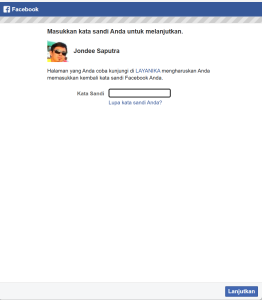
Click Connect with Facebook and log in to your Facebook account. Click Continue to grant Layanika permission to manage your WhatsApp Business account and billing.
Step 4:
Select an existing Meta Business account or create a new one (the following steps will guide you through creating a new Meta Business account). Enter your business information and ensure your website is valid, then click Next.
Step 5:
Create or select your WhatsApp Business Account.
To create a new account:
- In the Select WhatsApp Business Account, choose Create a WhatsApp Business Account
- In the Create or Select WhatsApp Business Profile, choose Create a New WhatsApp Business Profile
- Click Next
Step 6:
Create your WhatsApp business profile. Fill in the required business details, then click NextAdd your WhatsApp phone number and verify it using the code sent via SMS or phone call, then click Continue
Official WhatsApp Business Account (Blue Checkmark) #
Official WhatsApp Business Account (OBA) is an account verified by Meta Platforms and marked with a blue checkmark on the WhatsApp profile.
Below are the requirements before applying for an Official WhatsApp Business Account (OBA):
WhatsApp API AccountThe account must be registered and actively using the WhatsApp Business API. Register here if you do not have one yet.
Registered Through an Official BSP (Business Solution Provider): Applications for an Official Business Account must be submitted through an official WhatsApp Business Solution Provider (BSP) Your business must be registered with a Business Solution Provider (BSP) for at least 30 days before applying for an Official Business Account (blue checkmark).
Verified Business Manager: Your business account in Meta Platforms must be registered and successfully verified (Business Verification Approved):
Display Name Approved: If you recently changed your display name, check the approval status in WhatsApp Manager and ensure it has been approved.
Good WhatsApp Account Quality:
- Have an active High Quality Rating
- No history of policy violations
- Avoid spamming or being frequently reported by users
WhatsApp Message Template #
WhatsApp Message Template adalah pesan yang sudah disusun sebelumnya dan harus disetujui oleh Meta before they can be used for communication through the WhatsApp Business API. For more detailed information on creating WhatsApp templates, you can visit the provided Broadcast Templates
Channel Configuration #
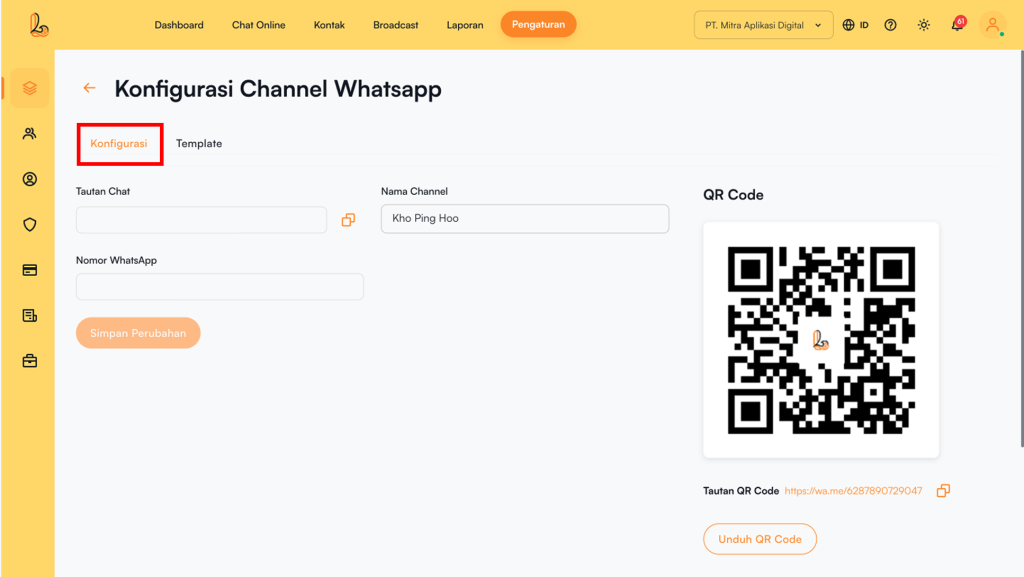
Users can update the channel name, copy the chat link, and download a QR code through the Configure Whatsapp Channel.
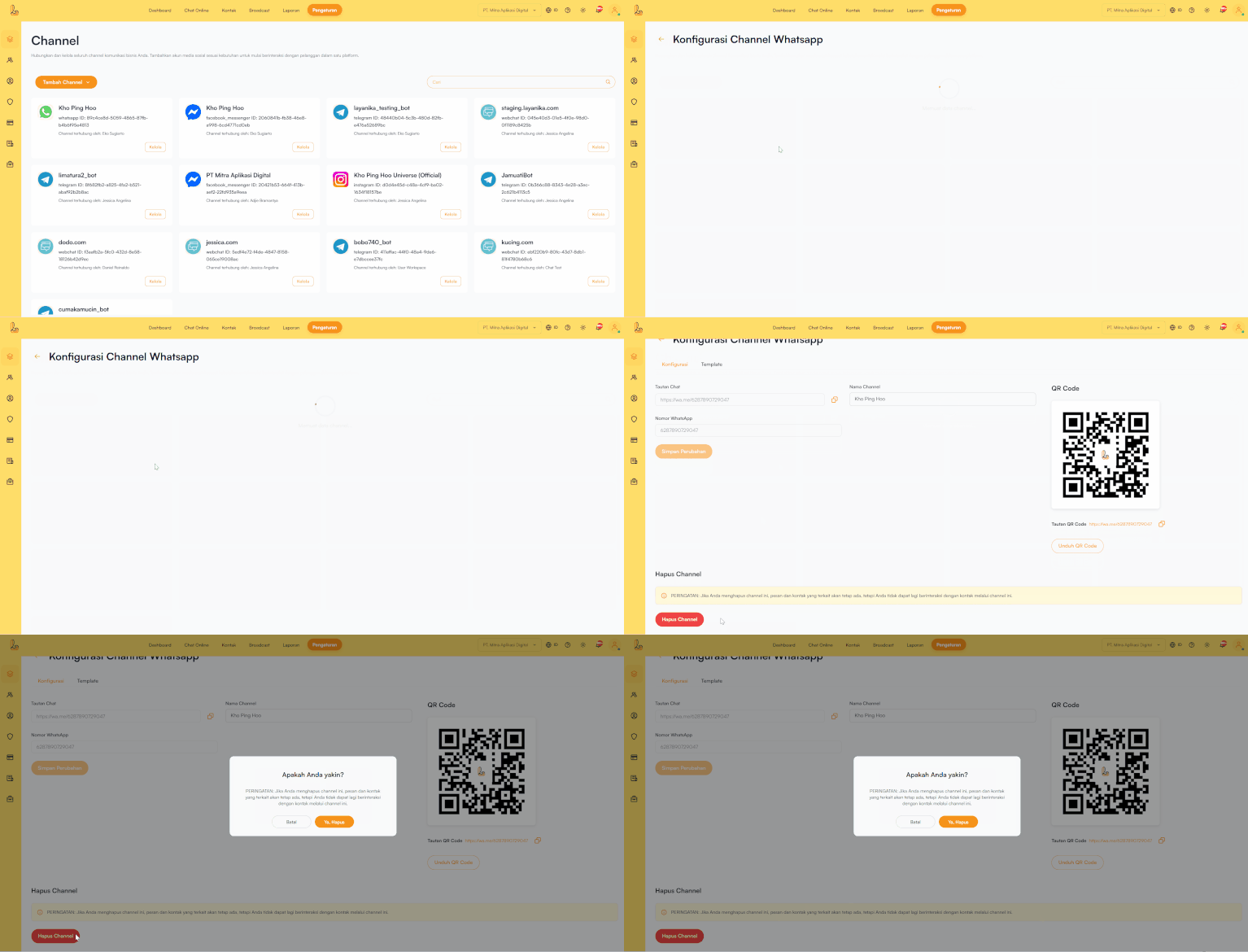
Click Manage e on the WhatsApp channel that has been connected to Layanika.
The system will then display the Configure Whatsapp Channelpage. Users will see the following information:
- Channel Name: The channel name can be updated as needed.
- Chat Link: This URL allows customers to easily start a conversation with your WhatsApp number.
- WhatsApp Number: The WhatsApp number registered on your channel.
- QR Code: You can use the QR code to share the chat link with your customers. Click Download QR Code to download it.