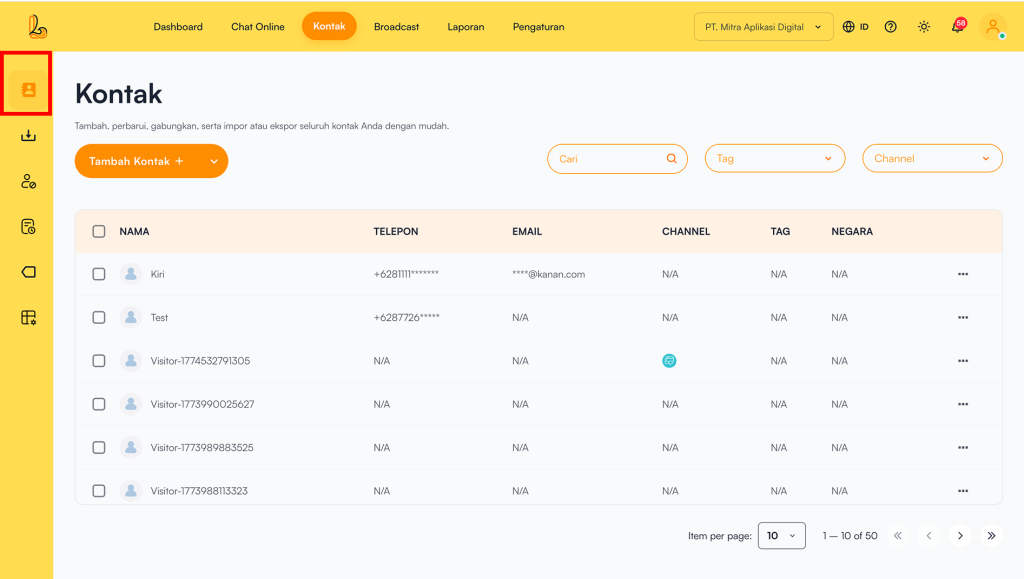
Contact List is a feature that displays all customer data stored in the Layanika system in a list or table format.
Through this feature, users can view, search, and manage all contacts in a centralized manner.
The following items are included in the contact list:
| Colom | Description |
|---|---|
| Name | Contact name or customer identity |
| Phone | Contact phone number (if available) |
| Contact email (if available) | |
| Channel | The channels associated with the contact (e.g., Facebook Messenger, Instagram, Webchat, Telegram, WhatsApp). |
| Tag | Labels or categories assigned to the contact |
| Country | Contact’s country of origin |
| More | Menu for managing contacts (edit, delete, and block contacts) |
a. Add Contact #
Users can add customer contacts to the Contacts menu. Below is a guide to adding a contact:
Step 1:
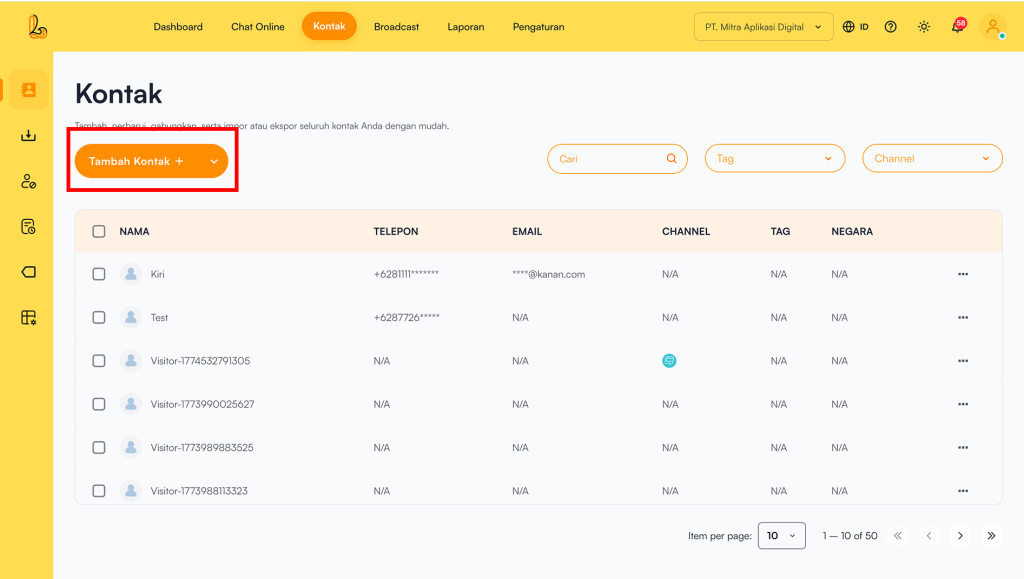
To add a contact, click Add Contact located in the top-left corner.
Step 2:
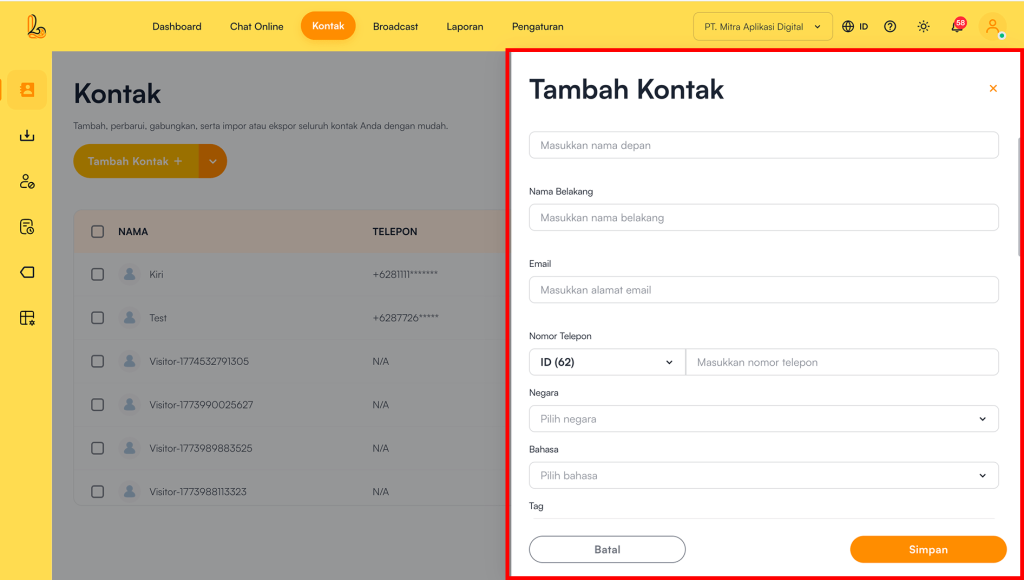
Layanika will display a form that can be filled with detailed customer information.
- The information you can add includes: first name, last name, contact information: such as email, country, phone number, language, address, and tags.
- Additional Details: extra information previously created as custom variables in the Contacts menu.
Step 3:
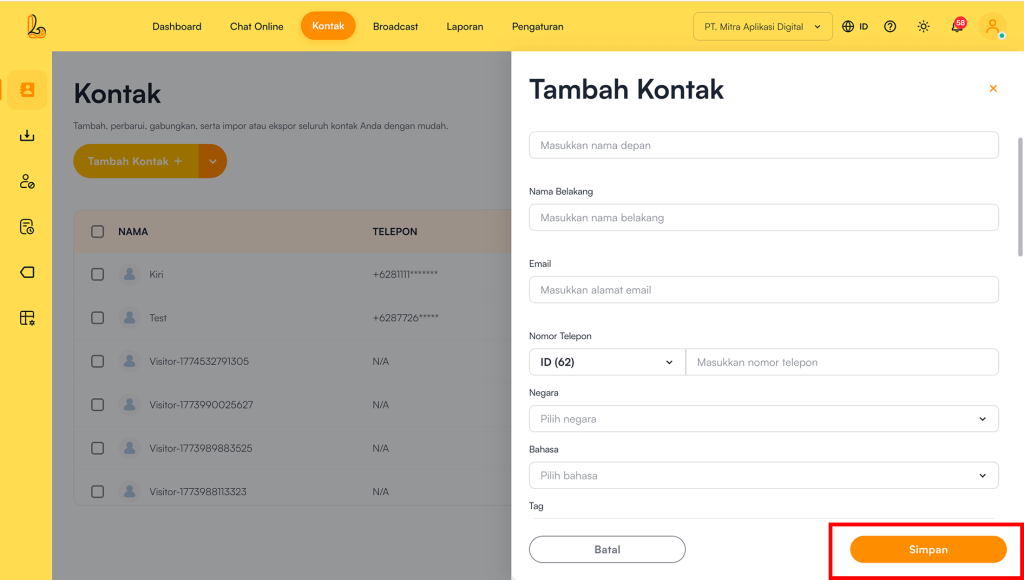
Then, users can save their changes by clicking the Save.
b. Edit Contact #
Users can update customer contact information in two ways:
- Via Contact Profile
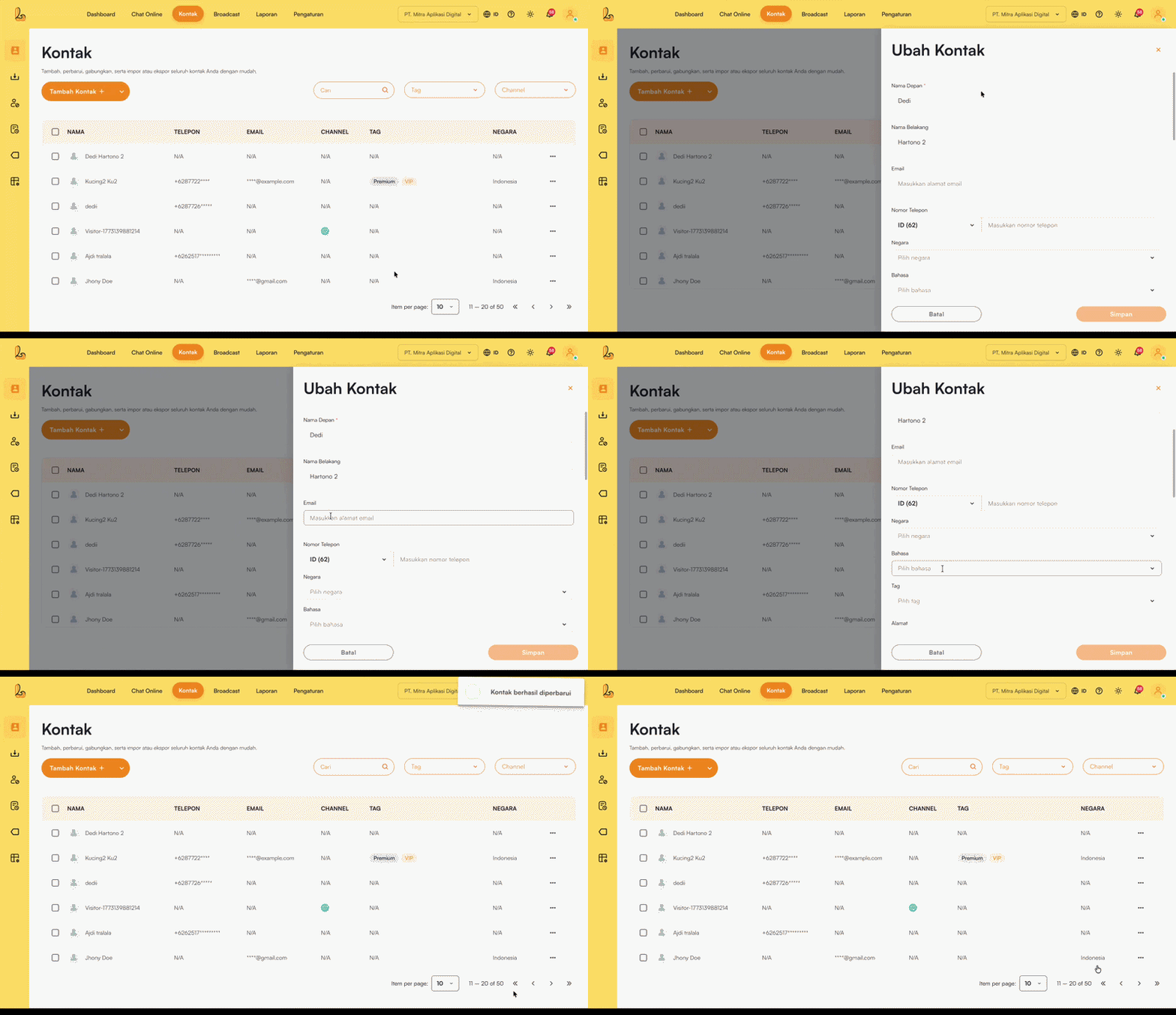
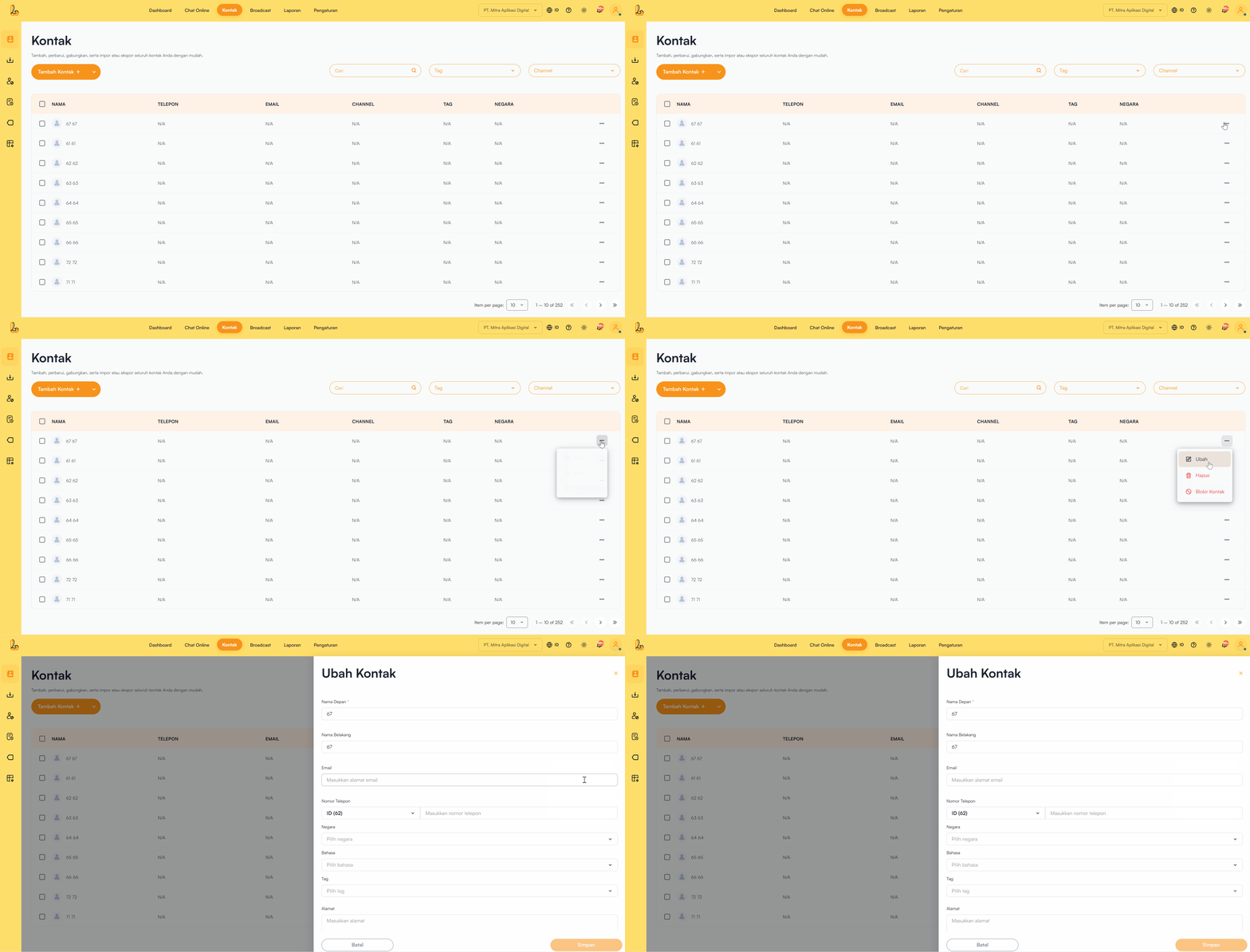
Select the customer’s contact name from the contact list. Click Updated to update the contact information, then click Save once the changes are complete.
- Via Edit Action
Select the customer’s contact name from the contact list. Click Updated to update the contact information, then click Save once the changes are complete.
c. Delete Contact #
Users can delete contacts from the contact menu.
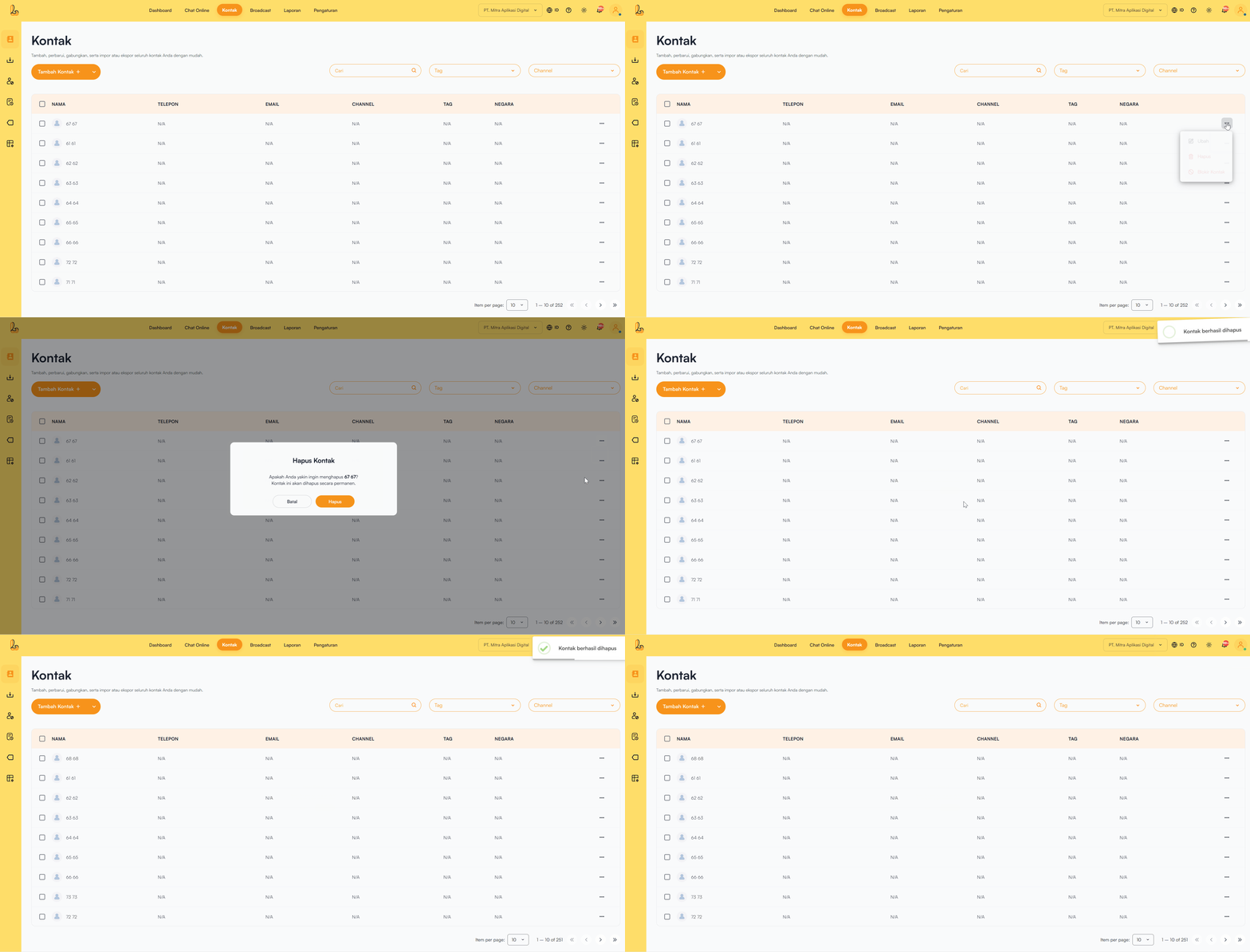
o delete a contact, select the contact from the list, then click Delete to remove the contact. After that, the system will display a confirmation prompt to ensure you want to delete the contact. Click Delete to confirm.
d. Block Contact #
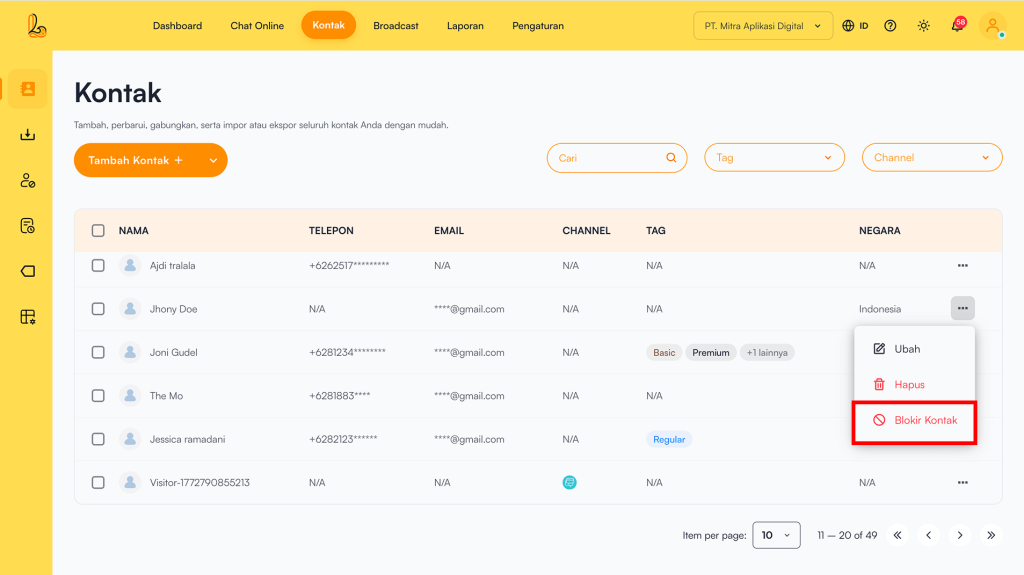
In addition to blocking contacts from the live chat menu, users can also block contacts from the contact menu.
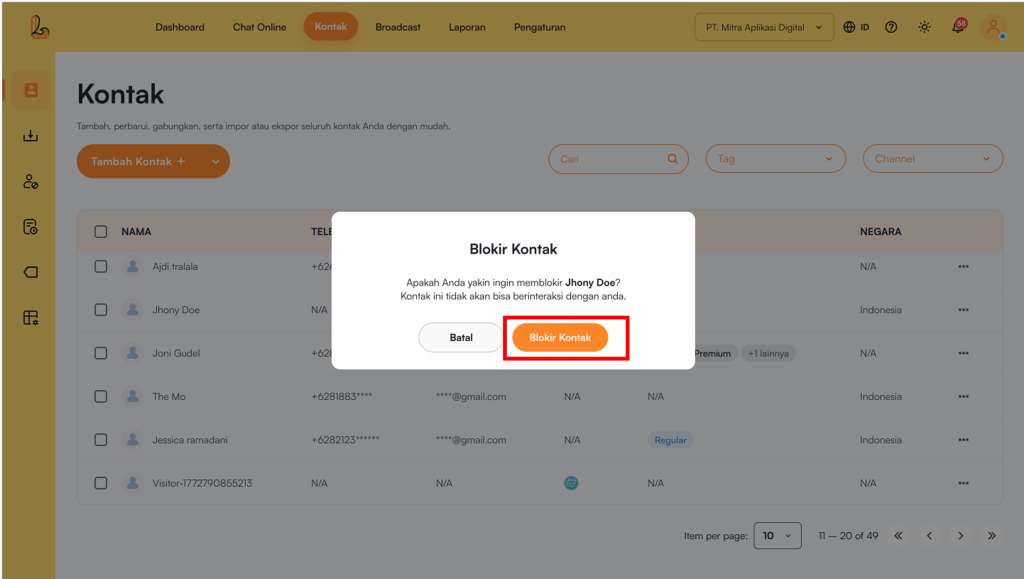
To block a contact, select the contact from the contact list. Click Block Contact to block the contact. A confirmation prompt will appear to ensure you want to proceed. Click Block Contact.
e. Contact Search #
Users can easily search and filter customer data to find the information they need quickly and efficiently.
Users can search for contacts in the following ways:
- Search by Name
Use the Search field to enter a contact name. The system will automatically display contacts that match the entered keyword. - Filter by Tag
Click the Tag dropdown to view available tags.
Users can select one or multiple tags to display contacts grouped under those tags. - Filter by Channel
Click the Channel dropdown to view connected communication channels.
f. Import Contacts #
From the contact list, users can import customer data. This allows users to add multiple contacts at once more efficiently. Below is a guide to importing contacts:
Step 1:
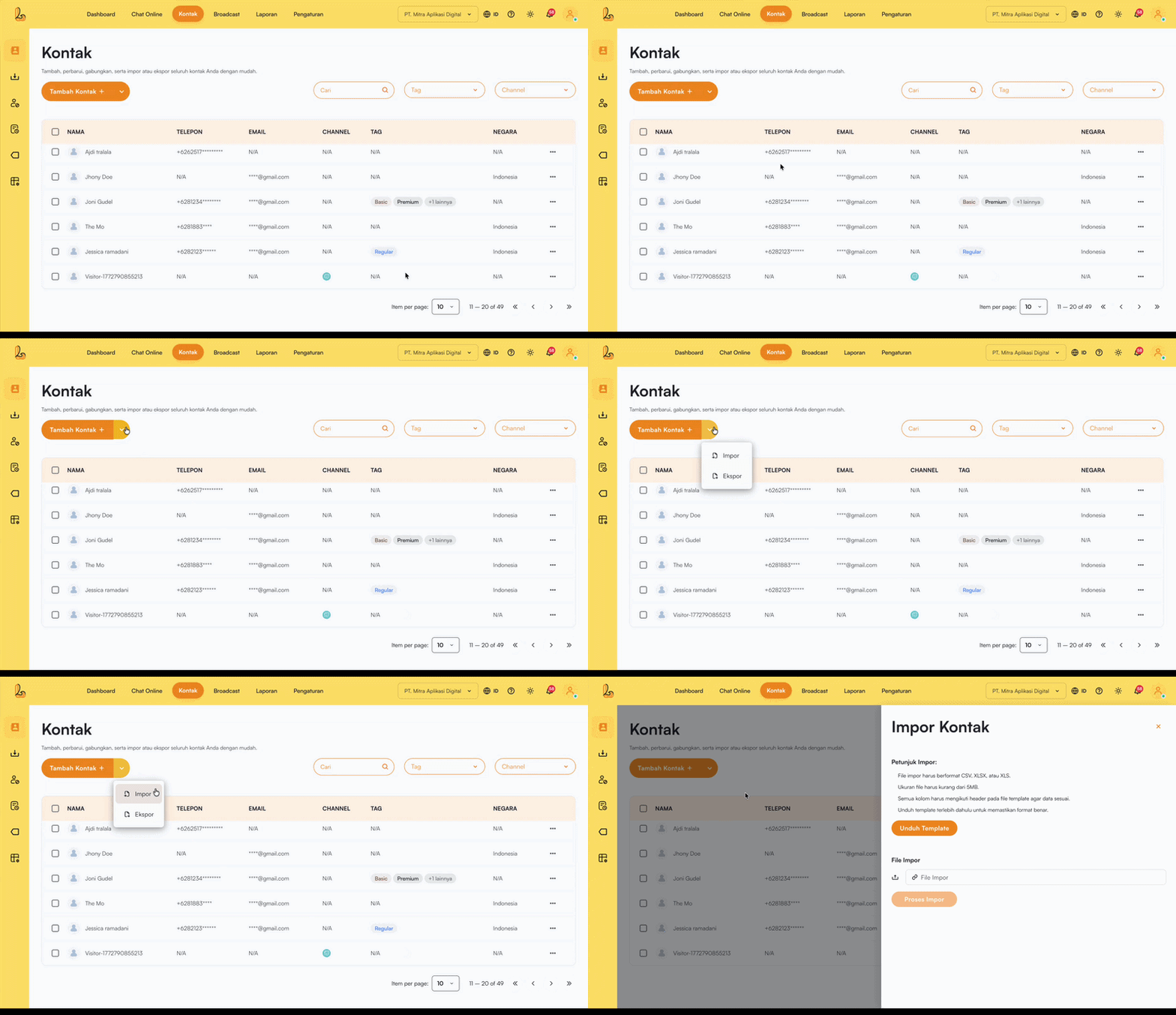
Click the arrow next to the Add Contact, then select Import. The system will then display the Import Contacts.
Step 2:
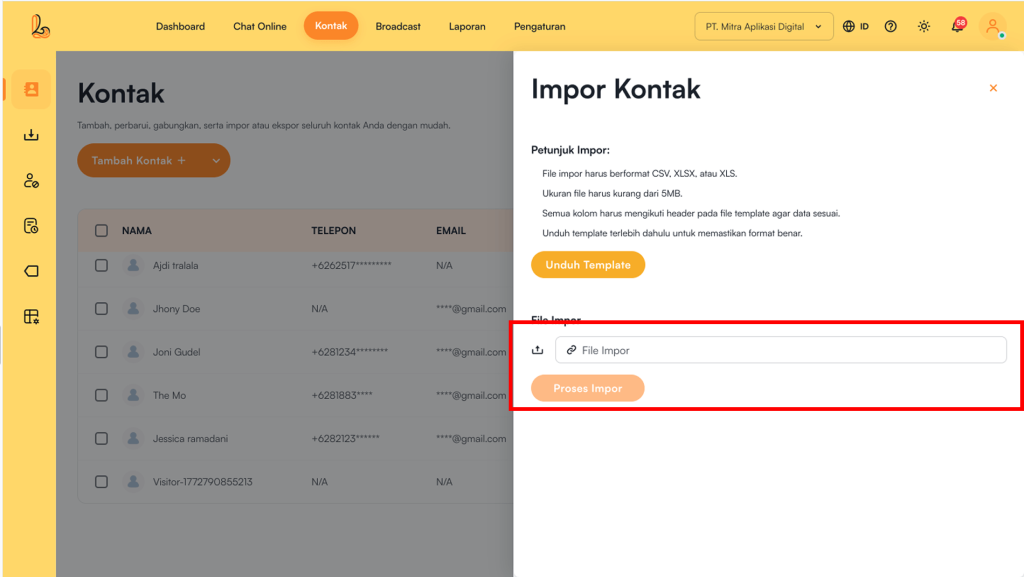
Before uploading a file, make sure to follow these requirements:
- File format: Must be CSV, XLSX, or XLS.
- File size: Maximum 5MB.
- Data structure: All columns must follow the headers defined in the system template header based on the system template.
- Download template: Download the template first to ensure the data format is correct.
Step 3:
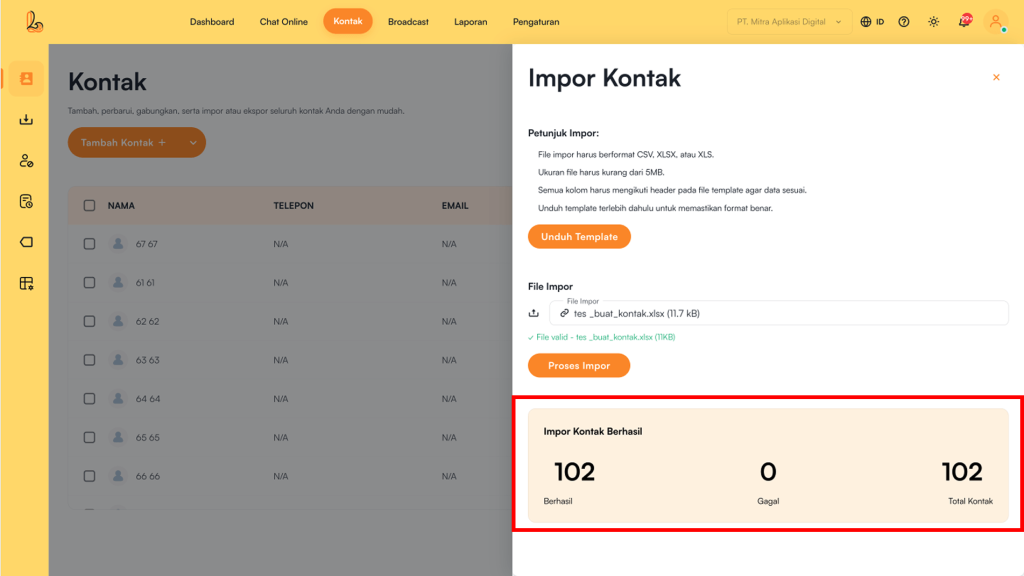
Jika proses berhasil, sistem akan menampilkan informasi proses impor data telah berhasil disertai rangkuman jumlah kontak yang berhasil masuk ke dalam daftar kontak.
g. Export Contacts #
In the contact list, users can export contacts. This feature makes it easier to retrieve customer contact data in large quantities.
Step 1:
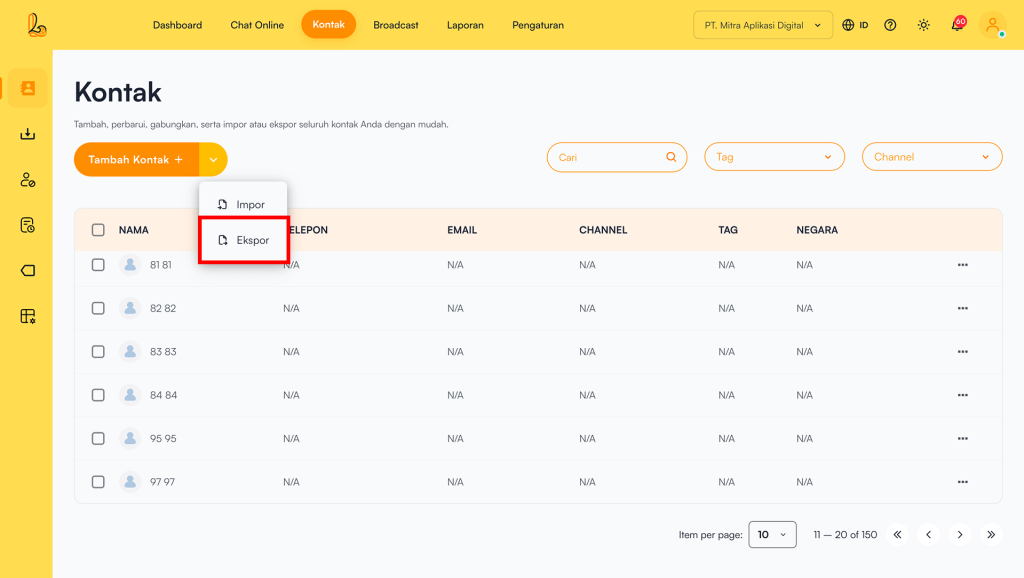
Click the arrow next to Add Contact, then select Export.
Step 2:
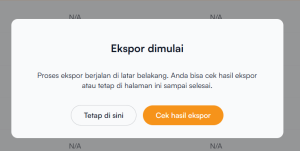
There are two options available Stay and Check Export Results
- StayThe user will remain on the contact menu. The system will notify the user when the file is ready to download.
- Check Export Results: Pengguna akan mendapatkan notifikasi dan akan diarahkan ke halaman Import/Export History untuk melihat proses expor.
h. Merge Contacts #
nomor Apabila memiliki kontak dengan nama yang sama dan nomor kontak yang berbeda, pengguna dalam daftar kontak, maka dapat dilakukan penggabungan menjadi 1(satu) nama dengan 2(dua) nomor yang berbeda
How to merge contacts:
Step 1:
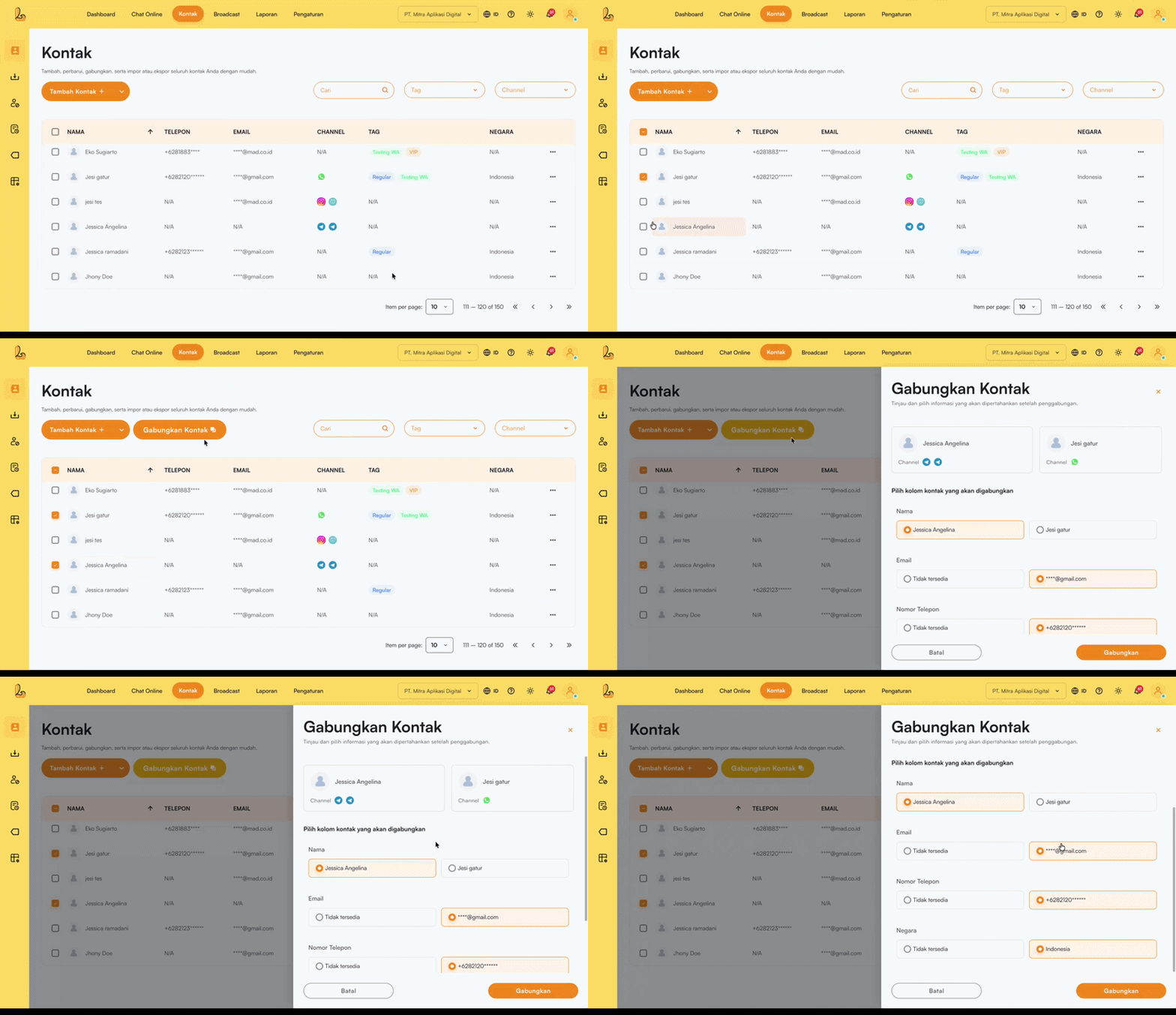
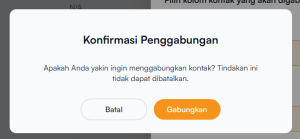
Select the contacts you want to merge by checking the boxes on the left. Then, click Merge Contacts located next to the Add Contact.
Step 2:
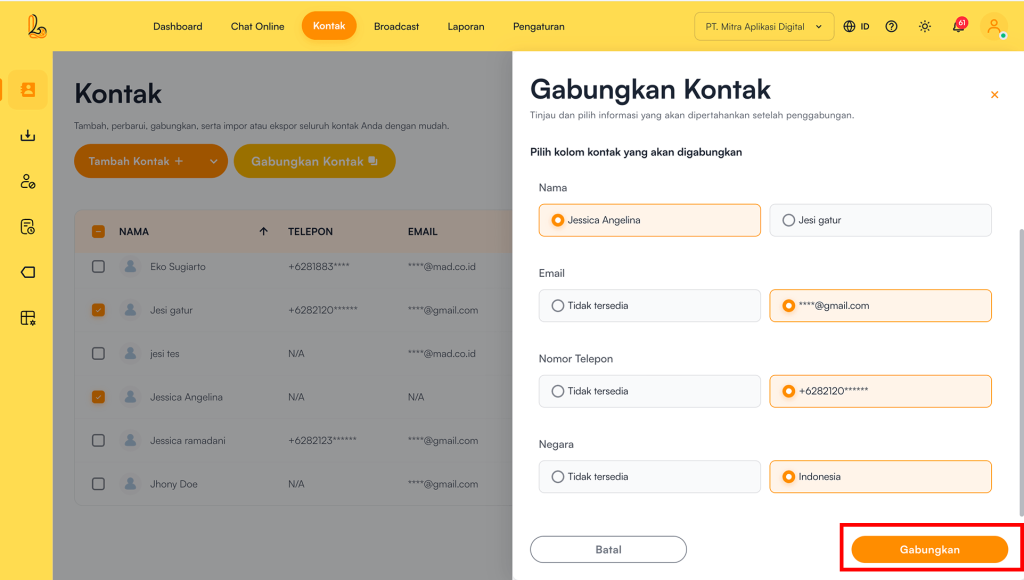
Pilih informasi yang ingin digunakan dari masing-masing kontak lalu klik Marge