

Broadcast is a feature in Layanika that allows users to send messages to multiple contacts simultaneously through various integrated communication channels.
This feature is designed to deliver information, promotions, or notifications efficiently without the need to send messages individually.
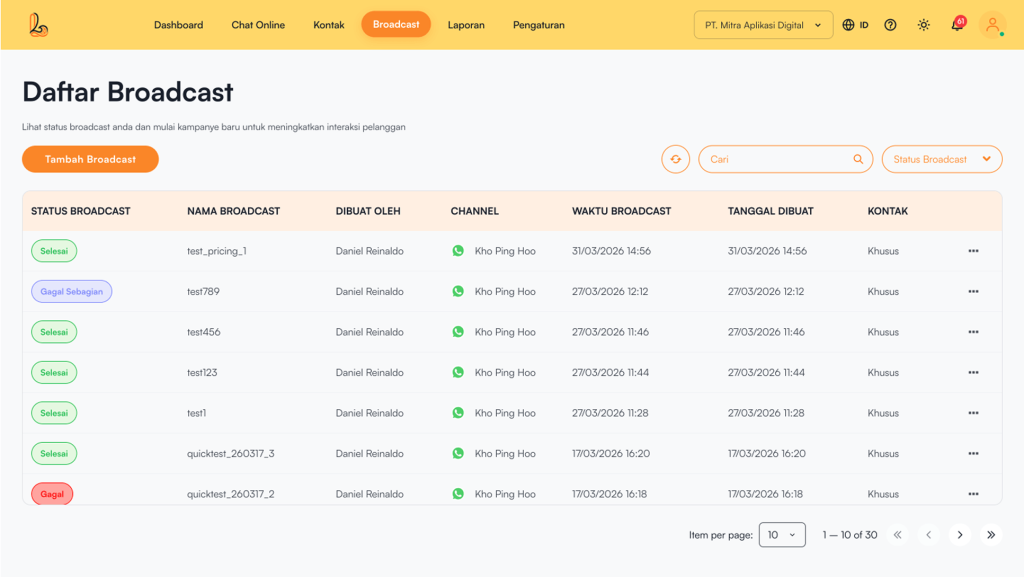
Broadcast statuses are divided into several categories:
| Broadcast Status | Description |
|---|---|
| Draft | The broadcast is still being prepared and has not been sent yet. You can still edit or complete the broadcast details |
| Scheduled | The broadcast has been scheduled and will be sent automatically based on the specified date and time |
| On Going | The broadcast sending process is in progress. Messages are being sent gradually to contacts. |
| Completed | The broadcast has been successfully delivered to all target contacts without any issues. |
| Partially Failed | Some messages were successfully delivered, but a few failed to reach certain contacts |
| Failed | The broadcast failed to send completely. No messages were successfully delivered to the target contacts. |
The Broadcast List includes :
| Colom | Description |
|---|---|
| Broadcast Status | Displays the broadcast delivery status |
| Broadcast Name | Displays the name of the broadcast message that has been created |
| Created By | The user who creates and sends the broadcast. |
| Channel | The social media channel used to send the broadcast. |
| Broadcast Time | The time when the broadcast message is sent to the targeted contacts. |
| Created Date | The date when the broadcast message is sent to the targeted contacts. |
| Contact | Contacts that have assigned tags and are selected as the target recipients for the broadcast. |
| More |
|
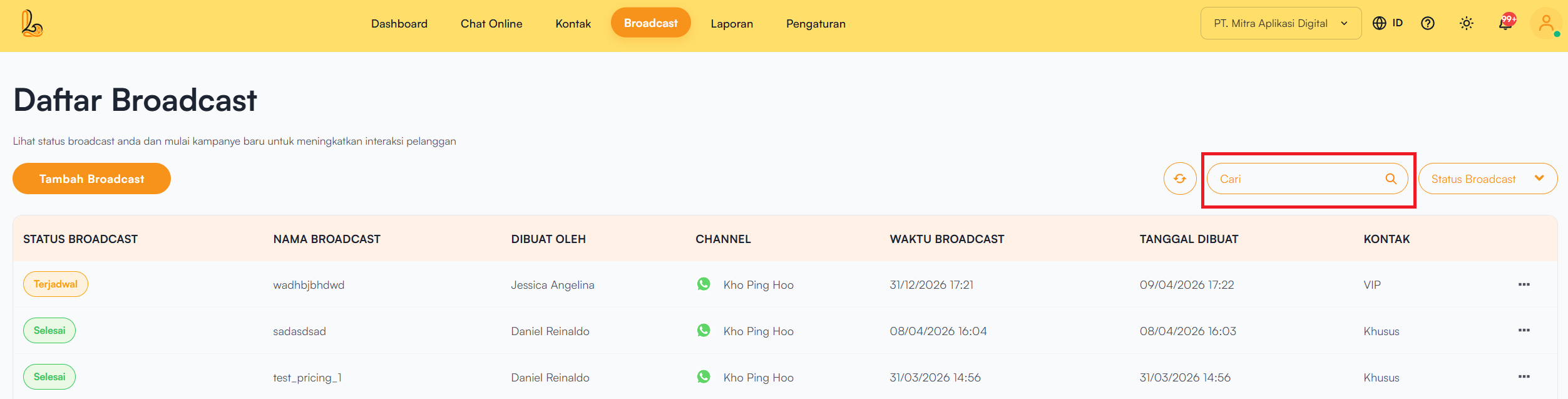
a. Broadcast Search #
This feature is used to search for broadcast messages based on the broadcast name and status.
b. Broadcast Details #
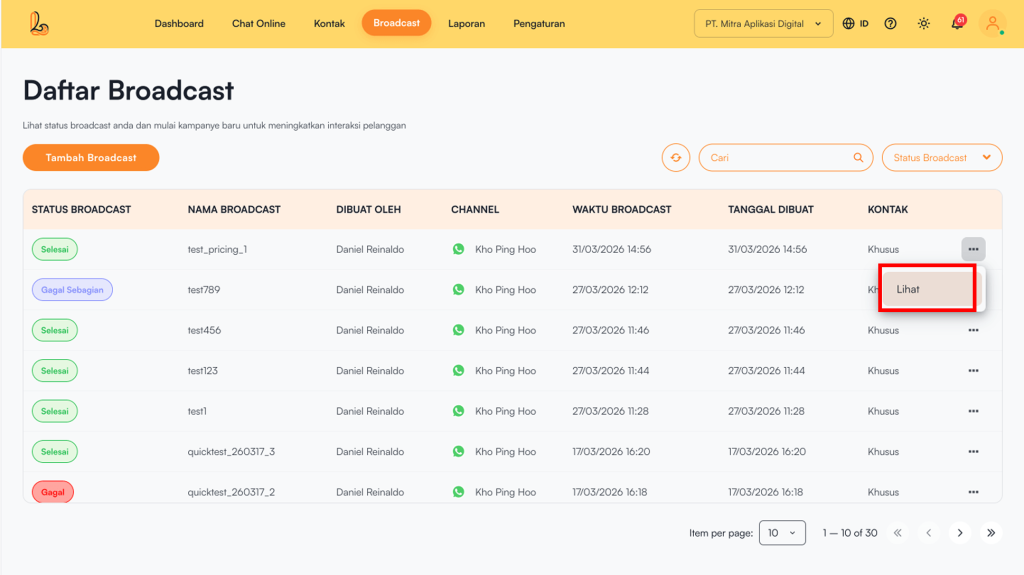
Click three dots on the right, then select View, to see the broadcast details , including the status, number of recipients, number of messages sent, and the broadcast preview.
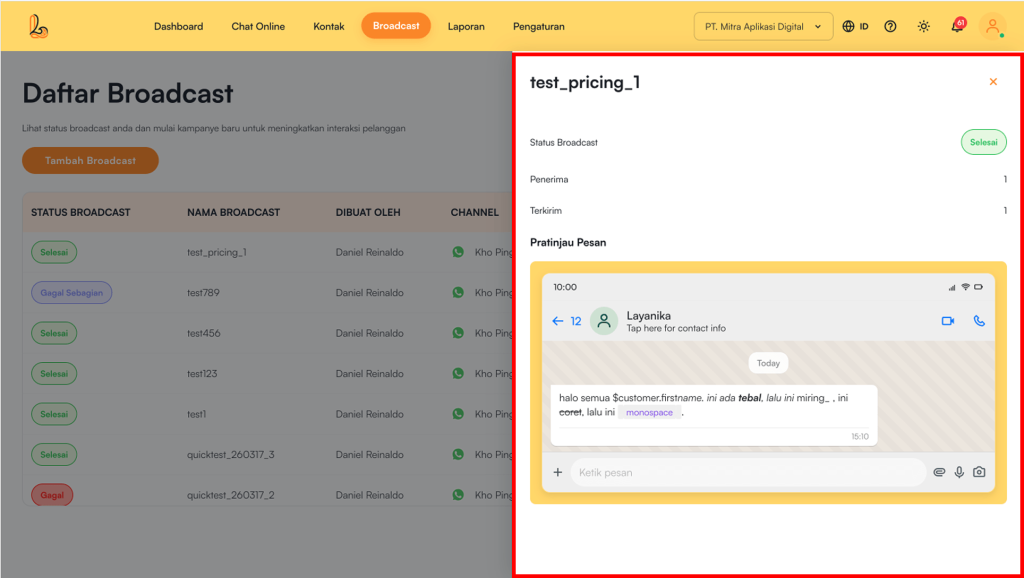
The Broadcast Details page includes the following information:
| Information | Description |
|---|---|
| Broadcast Name | Displays the name of the broadcast message that has been created |
| Broadcast Status | Indicates the delivery status of the broadcast |
| Recipients | The total number of contacts targeted by the broadcast |
| Sent | The number of messages successfully delivered to recipients |
| Message Preview | The message preview sent to the customer |
c. Create a Broadcast #
Step 1:
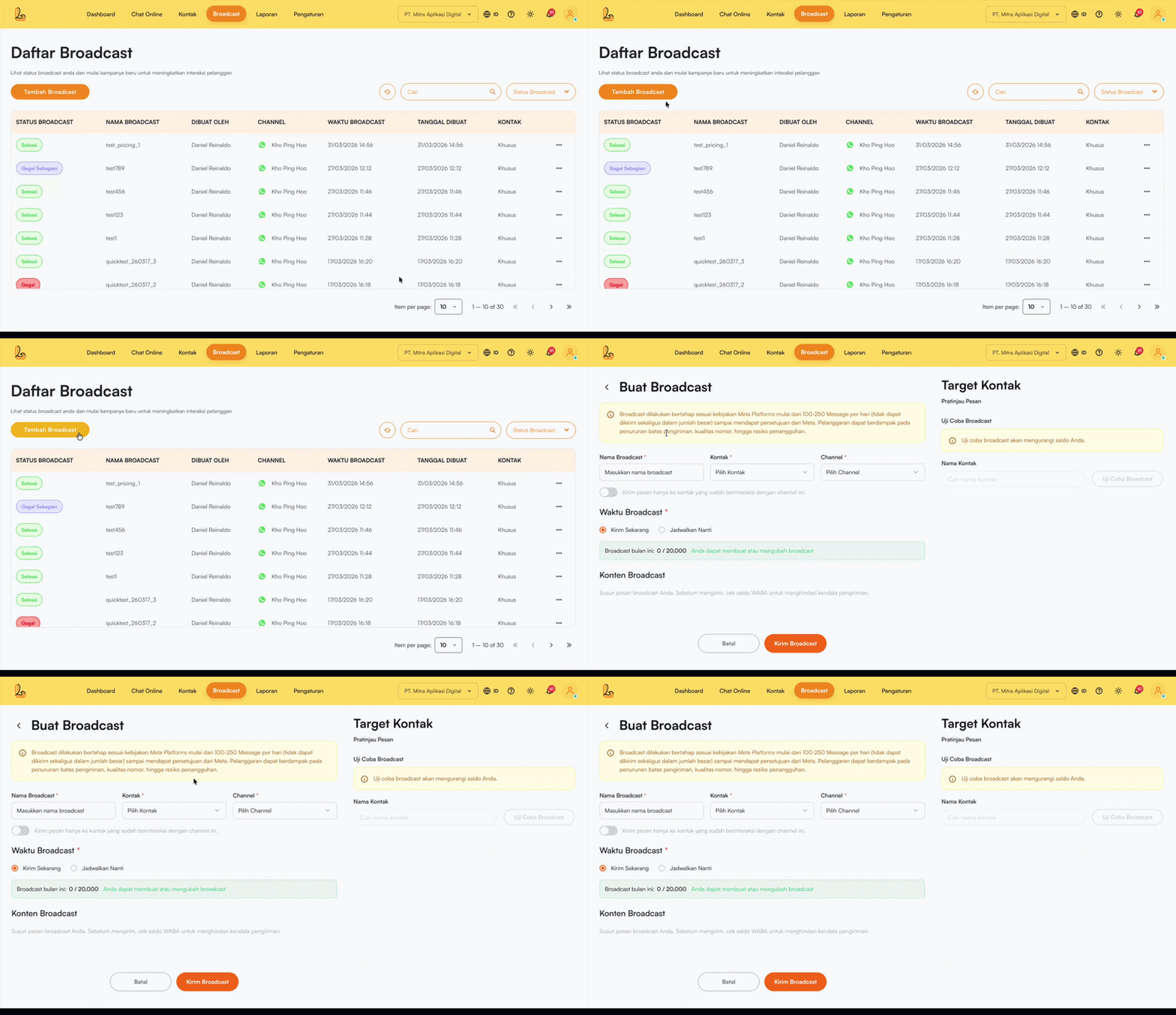
Click Add Broadcast located in the top-left corner.
| Information | Description |
|---|---|
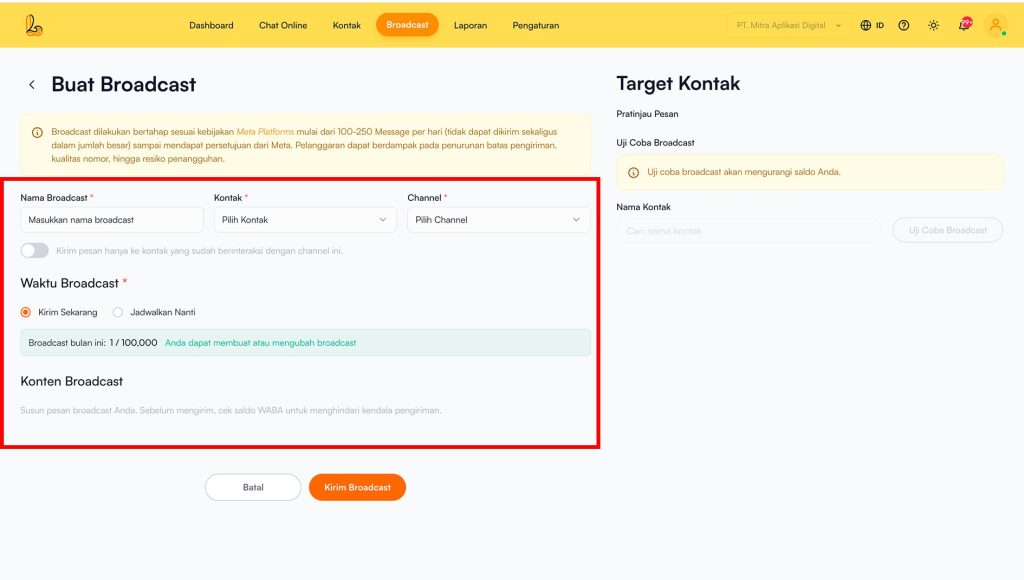
| Broadcast Name | Displays the name of the broadcast message that has been created |
| Contact | Contacts that have assigned tags and are selected as the target recipients for the broadcast. |
| Channel | The social media channel used to send the broadcast. |
| Interaction Filter (Optional) | Send broadcasts to contacts who have previously interacted with the user |
| Waktu Broadast | Users can choose the delivery time:
|
Step 2:
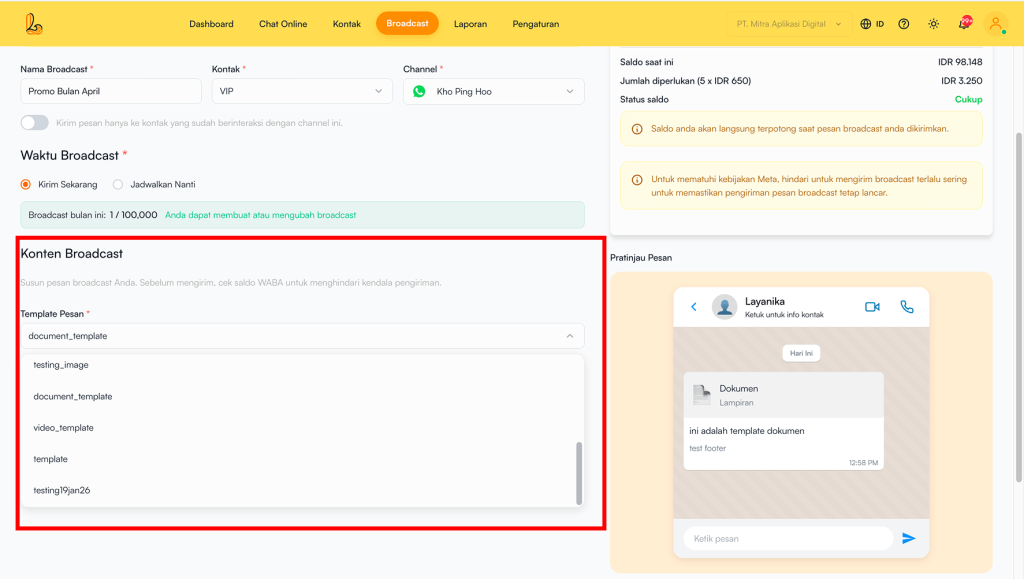
Add the broadcast content by selecting or including a pre-created WhatsApp Message Template. If a template is not yet available, create one by following the How to Create a Broadcast Template.
Step 3:
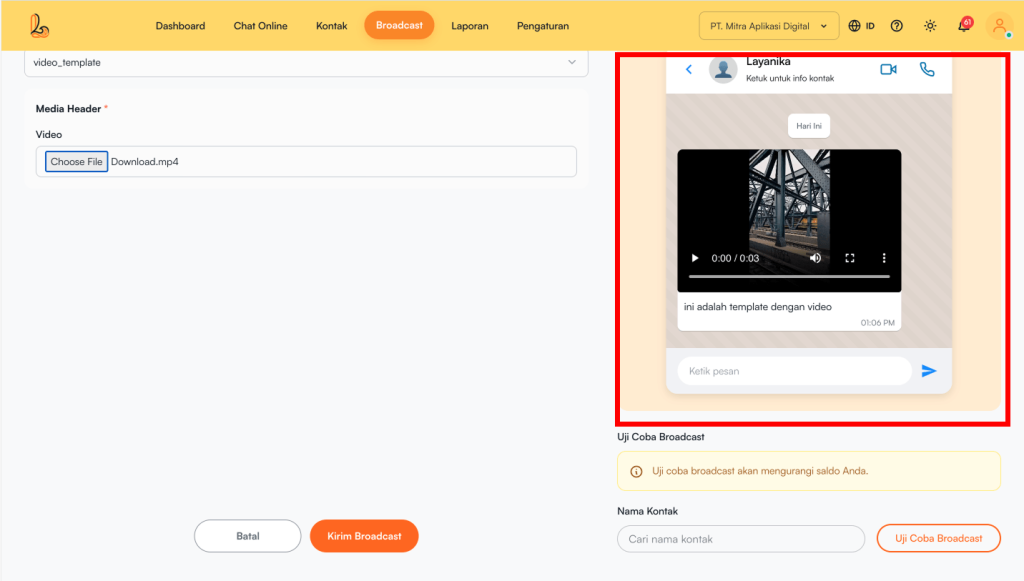
Make sure the message appears as expected by Message Preview.
Step 4:
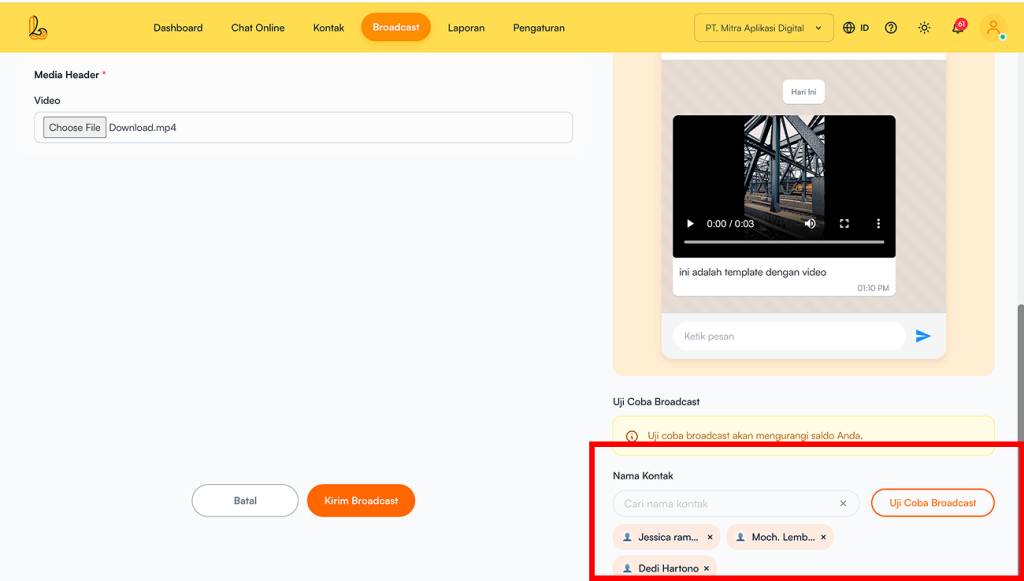
Send a test broadcast before delivering it to customers to ensure the content appears as intended. Select contacts by name or phone number (maximum of 3 contacts).
Step 5:
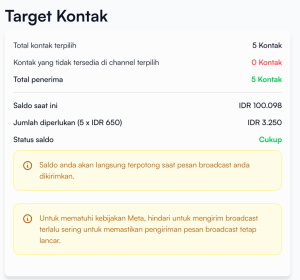
Review the target contacts to see the details of the number of messages sent and the number of recipients who will receive the broadcast.
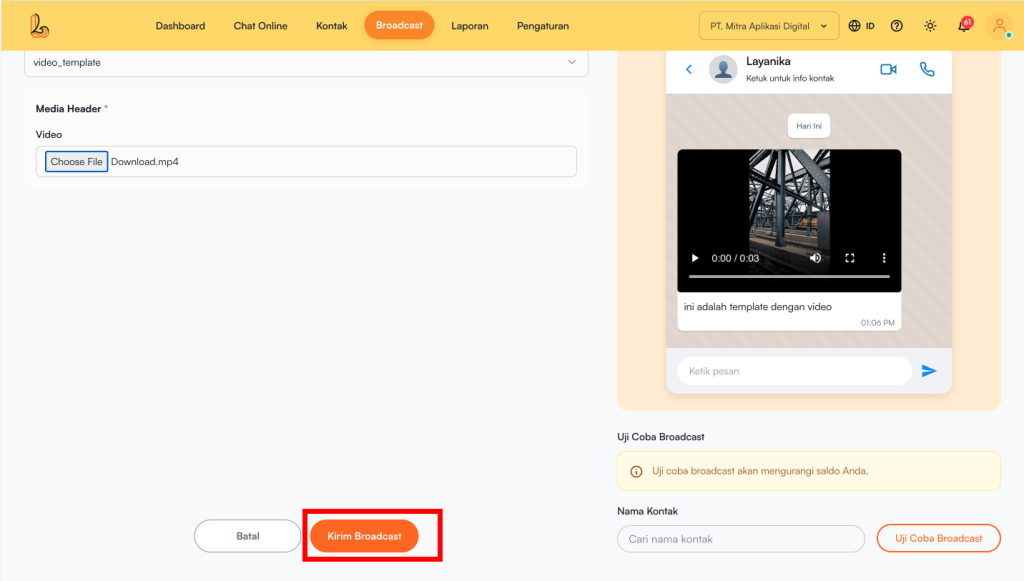
Step 6:
Ensure all information is filled in correctly, then click the Send Broadcast.
Note: For the first broadcast, messages are sent gradually in accordance with Meta’s policy (approximately 100–250 messages per day) and cannot be delivered in large volumes at once. Violations may result in reduced sending limits, lower number quality, or even account suspension.
| Information | Description |
|---|---|
| Total selected contacts | The total number of contacts who will receive the broadcast. |
| Contacts unavailable on the selected channel(s) | The number of contacts who cannot receive the broadcast because they are not connected to the selected channel(s). |
| Total recipients | The total number of contacts who will receive the broadcast after the filtering process. |
| Current balance | The available conversation balance before the broadcast is sent. |
| Amount required | The estimated cost required to send the broadcast. |
| Balance status | The status of whether the balance is sufficient to send the broadcast (e.g., sufficient or insufficient). |
| Additional Information |
|

e. Delete Broadcast #
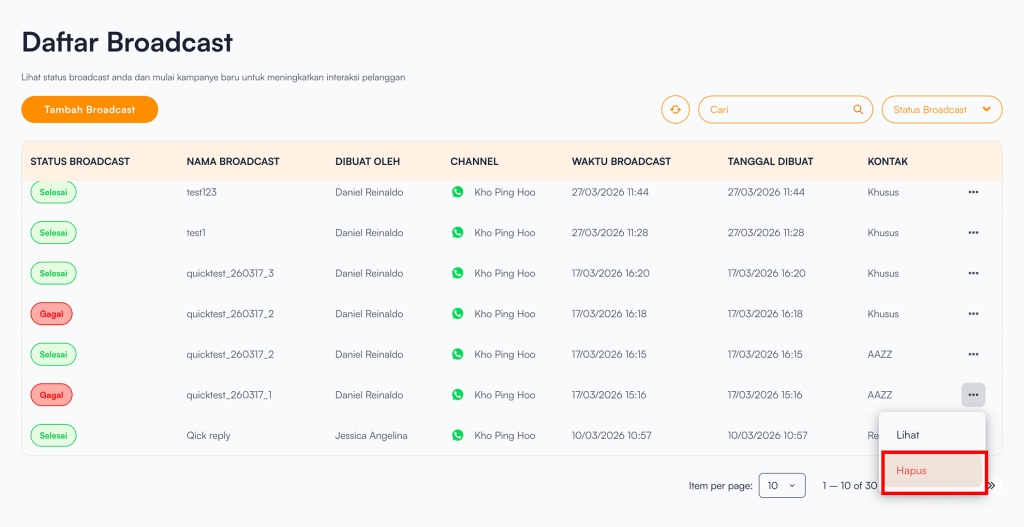
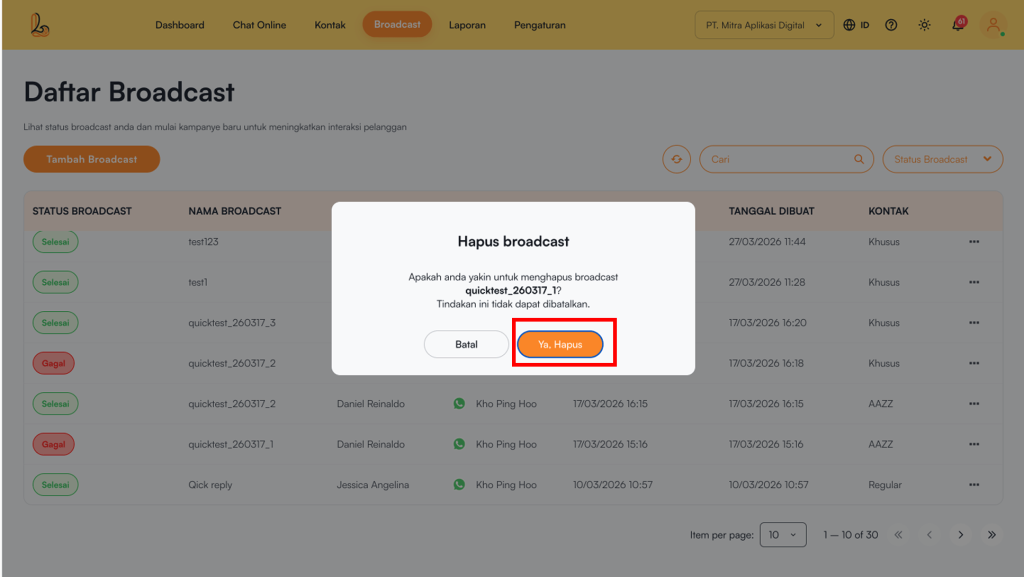
Click three dots on the right side of the broadcast list, then select Delete. A confirmation prompt will appear click Yes, Delete