

Subcription is a feature in Layanika that manages service plans for customers or users, including feature access, user limits, and usage restrictions based on the selected plan.
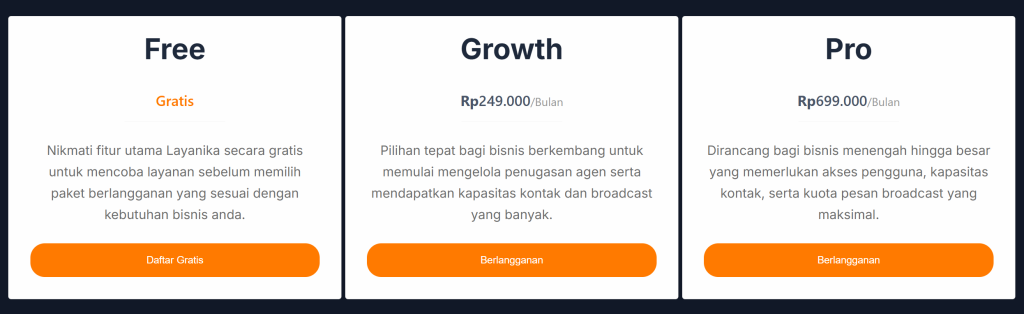
Through the subscription system, users can choose a plan that best fits their business needs, such as Free, Growth, or Pro.
a. Upgrade Paket #
Users can upgrade their plan to access greater capacity and more advanced features. Before making a purchase or upgrading, ensure that the information in the Billing Information menu has been completed.
Step 1:
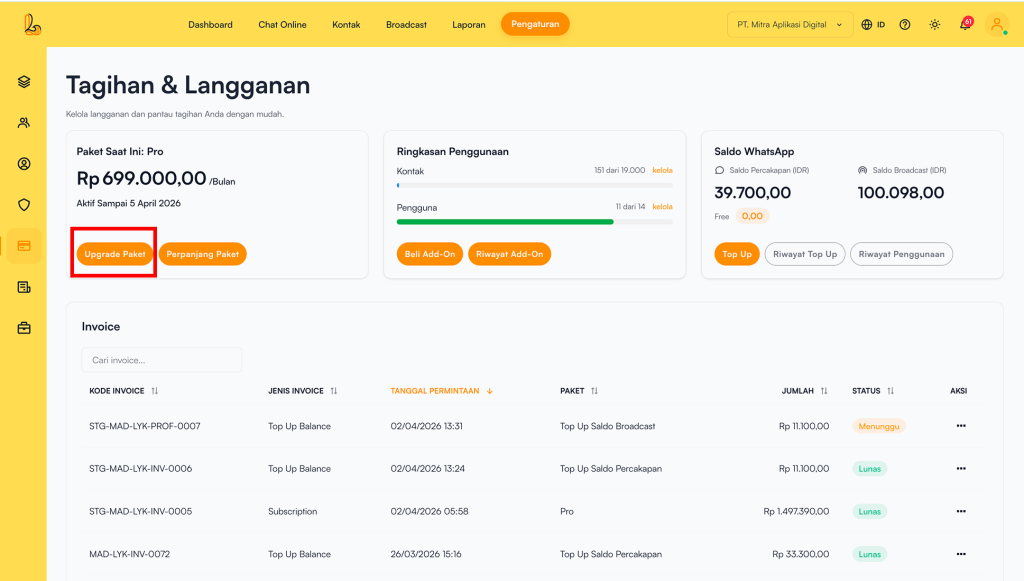
Go to the Settings>Subcription , then click Upgrade Subcription. Users can also add add-ons sesuai dengan kebutuhan.
Step 2:
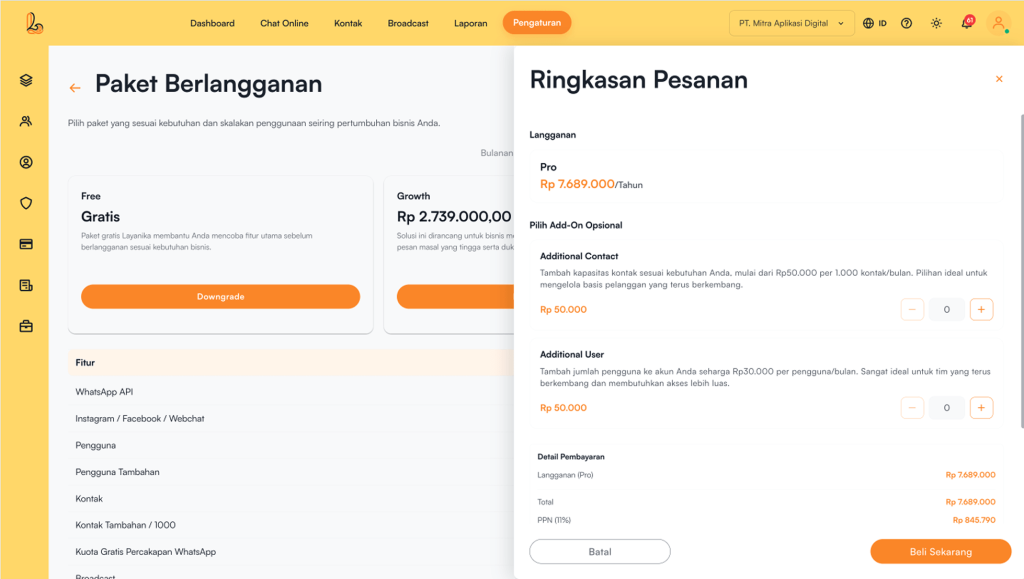
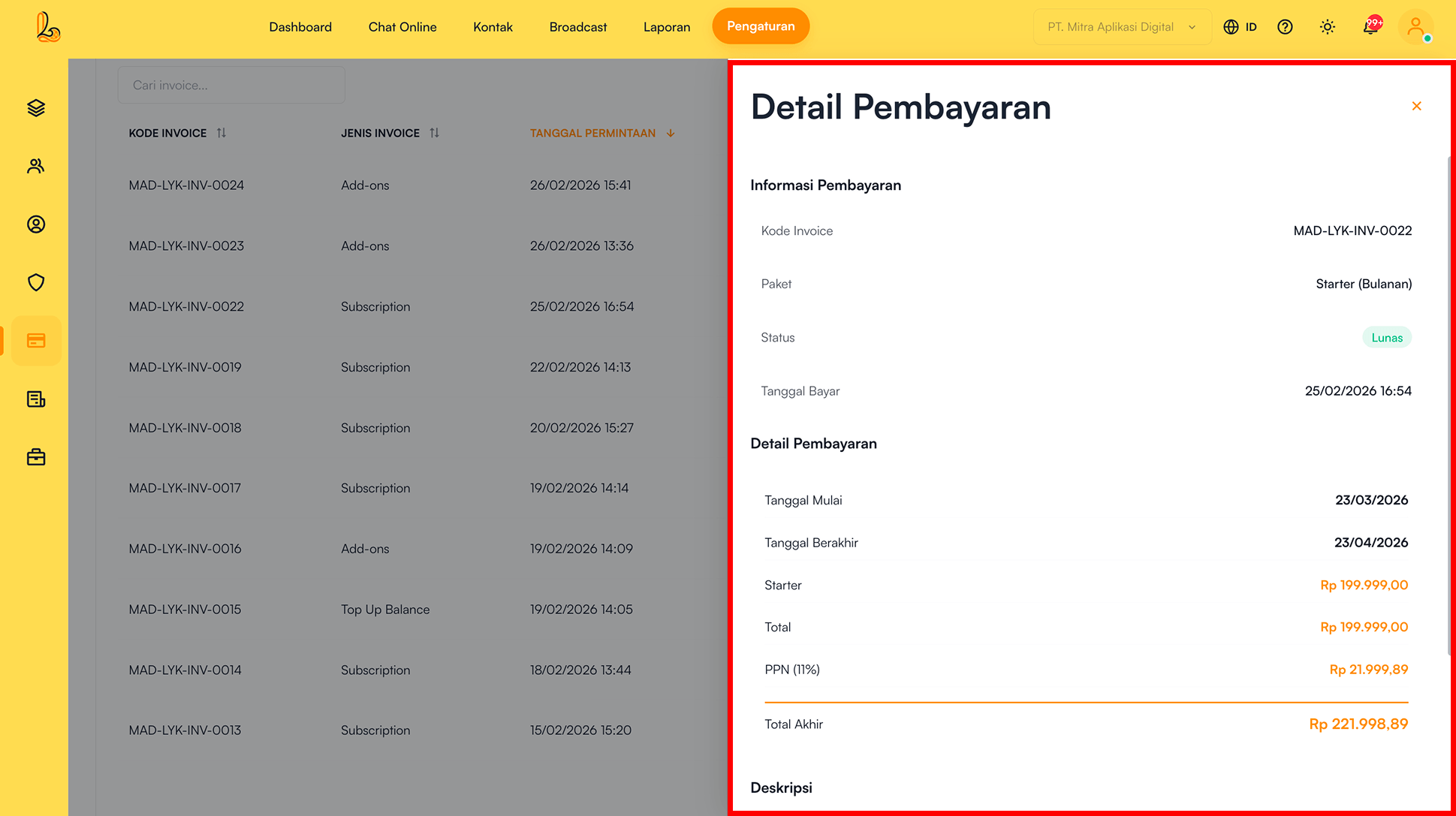
Complete the payment, and the plan will be updated automatically. To view the purchase invoice, go to the Invoice, and click the View Details di tabel Invoice.
| Status | Description |
|---|---|
| Upgrade | Move to a higher plan with increased features and greater capacity. |
| Downgrade | Switch to a lower plan with adjusted features, such as user limits, contacts, and broadcast quotas. |
b. Renew Subcription #
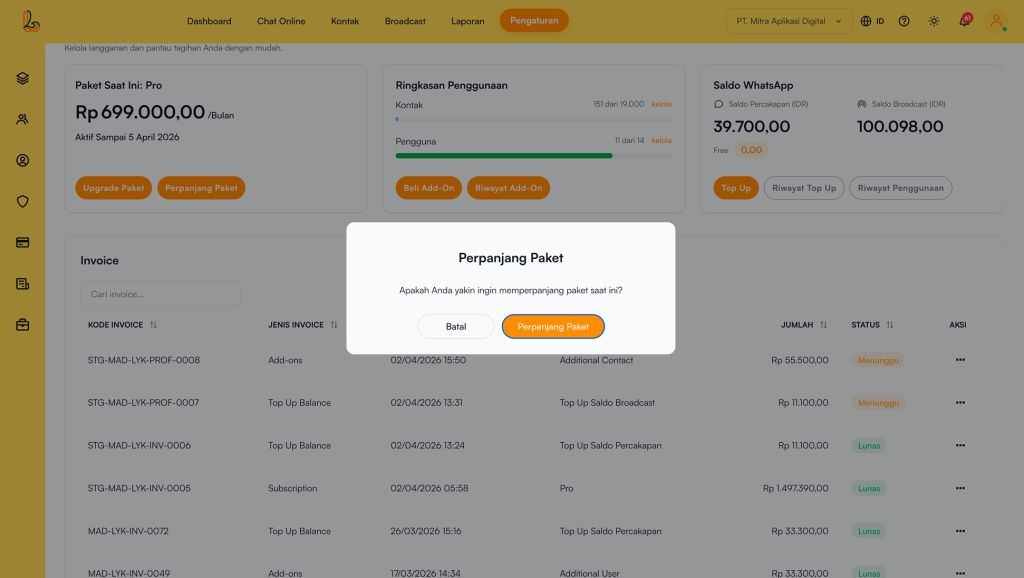
Go to the Settings>Subcription , then click Renew Subcription. The system will display a confirmation pop-up for the renewal. Click Renew Subcription to proceed with the renewal process.
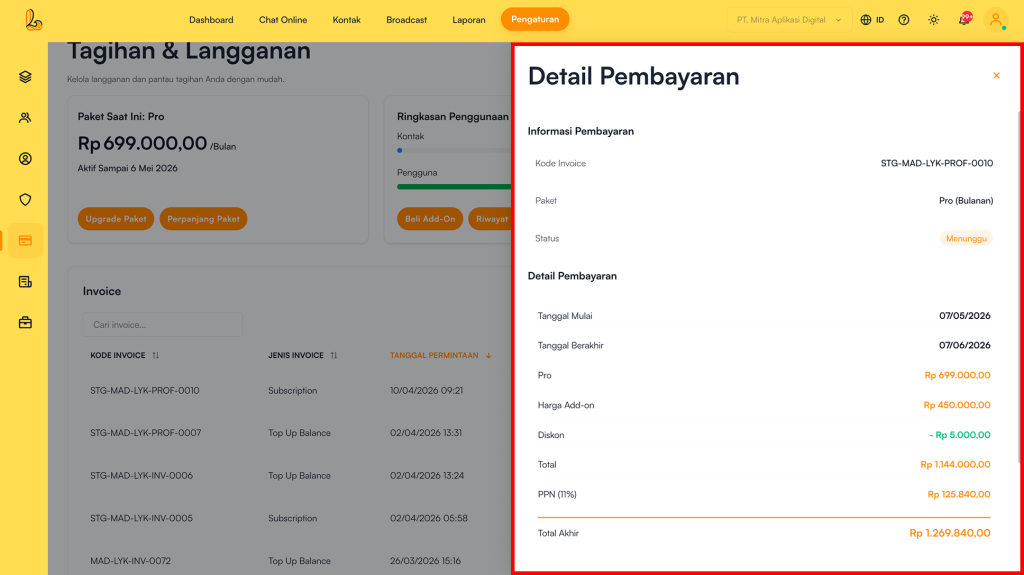
Users can view the invoice by selecting View Details in the table Invoice
c.Buy Add-Ons #
Buy Add-Ons is a feature that allows users to add additional services or capacity beyond the main subscription plan (Free, Growth, or Pro) based on their needs.
Add-ons are optional and provide greater flexibility without requiring an immediate plan upgrade.
Available Add-On Types:
- Additional Contact
Used to increase contact capacity. Suitable for businesses with a large customer base. - Additional User
Used to increase the number of users (agents) in the system. Suitable for growing teams.
Step 1:
Go to the Settings>>Subcription , then click Buy Add-Ons. The system will display a list of available add-ons.
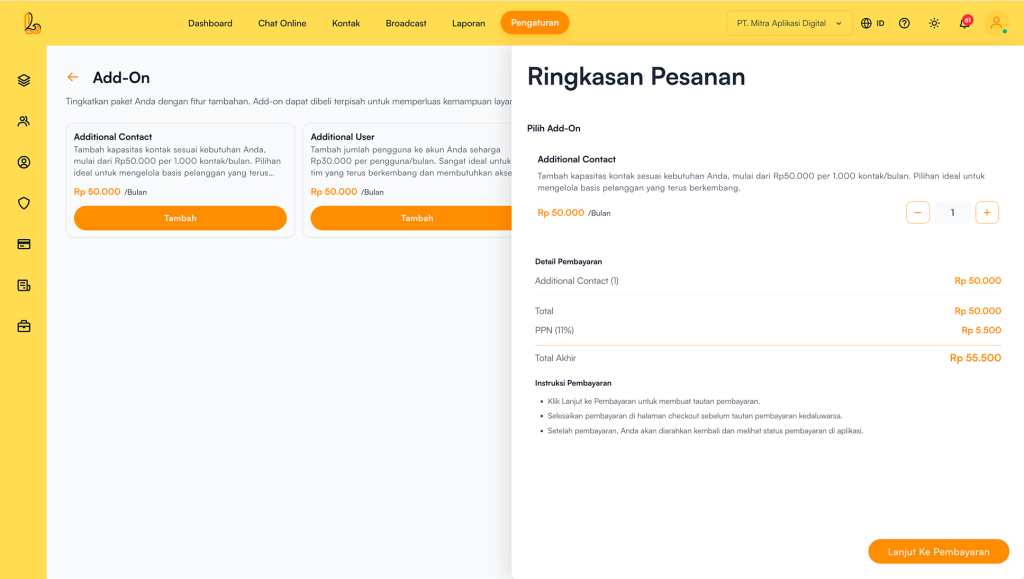
Click Add on the selected add-on. After clicking Add, the Order Summary. will be displayed. Specify the number of add-ons you want to purchase:
- ➕ to increase the number of add-ons
- ➖ to decrease the number of add-ons
Then, select Continue To Payment to proceed with the payment process.
Step 2:
After the payment is successful:
- The package will be updated automatically.
- The system will generate an Invoice.
d. Manage Add-Ons #
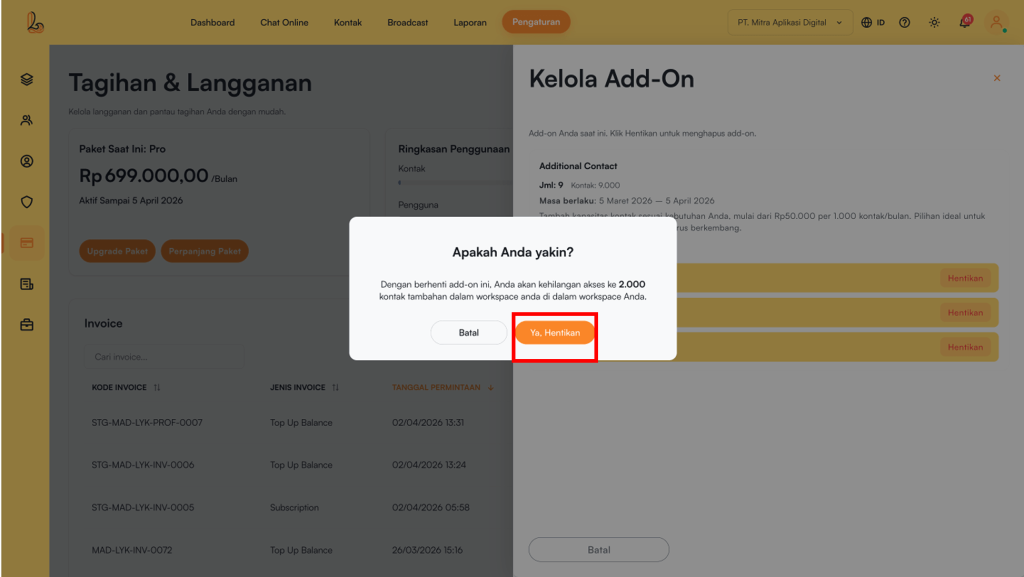
Feature Manage Add-Ons used to manage active add-ons. Through this feature, users can view add-on details and deactivate add-ons that are no longer needed.
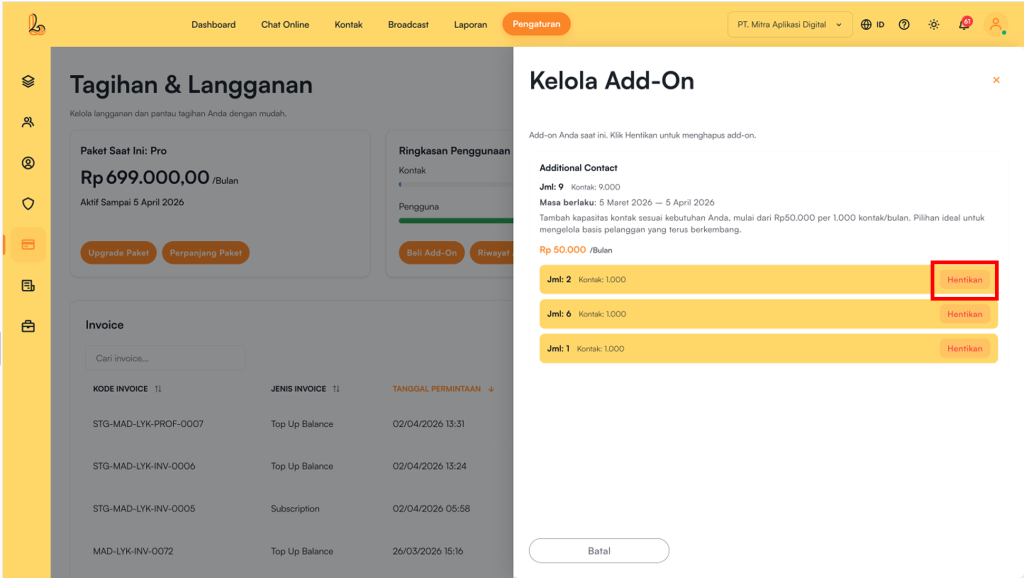
Go to the Settings>Subcription. In the Usage Overviewsection, click Manage. On the Manage Add-Onssection, click Stop Add-On yang tidak digunakan. Sistem akan menampilkan pop-up konfirmasi. Klik Yes. Stop to disable the add-on.
e. WhatsApp Balance #
WhatsApp Balance is the credit used to send and receive messages through WhatsApp within the platform. It consists of two types:
- Conversation Balance : Used to reply to customer messages. The cost for replying to a conversation is Rp 30 per message, primarily on WhatsApp.
- Broadcast Balance: Used to send broadcast messages. The current cost for marketing broadcasts is Rp 650 per message.
Regularly check your WhatsApp balance to ensure conversations run smoothly.

FREE Balance from Subscription Plans #
Currently, with each plan purchase, users will receive WhatsApp conversation balance:
- Free Plan → Rp15.000 (500 reply messages)
- Growth Plan → Rp30.000 (1.000 reply messages)
- Pro Plan → Rp60.000 (2.000 reply messages)
How to Top Up WhatsApp Balance #
Step 1:
Go to the Settings>>Subcription , then click Top up under WhatsApp Balance. The system will display the top-up page.
Choose one of the following options:
- Conversation Balance Minimum top up: Rp30.000 and Maximum top-up: Rp1.000.000.
- Saldo Broadcast: Minimum top up: Rp10.000 and Maximum top-up: Rp5.000.000.
Then, select Continue To Payment to proceed with the payment process.
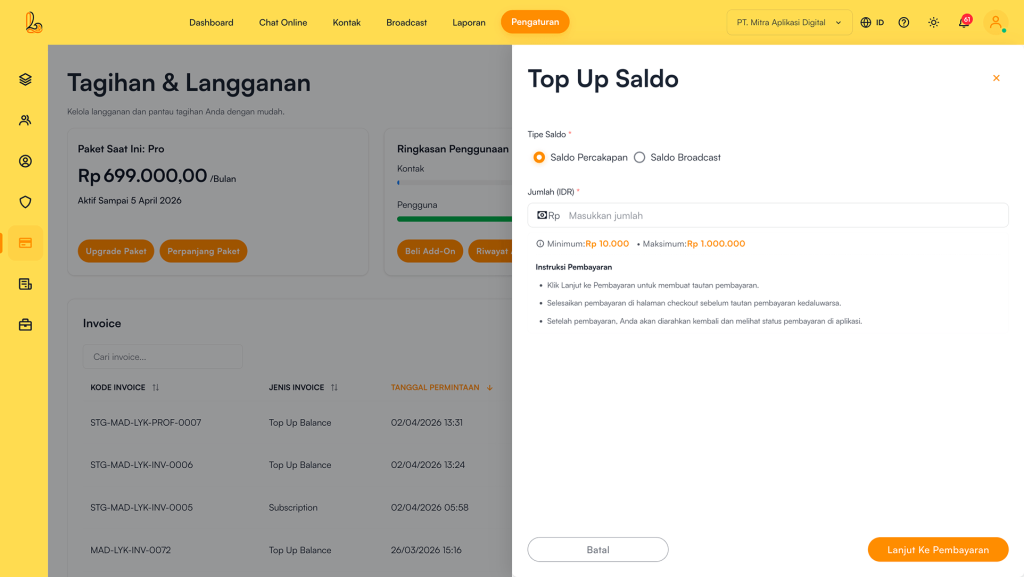
Step 2:
Once the payment is successful, your WhatsApp balance will be automatically updated. The system will generate an invoice, which can be viewed in the Top-Up History.
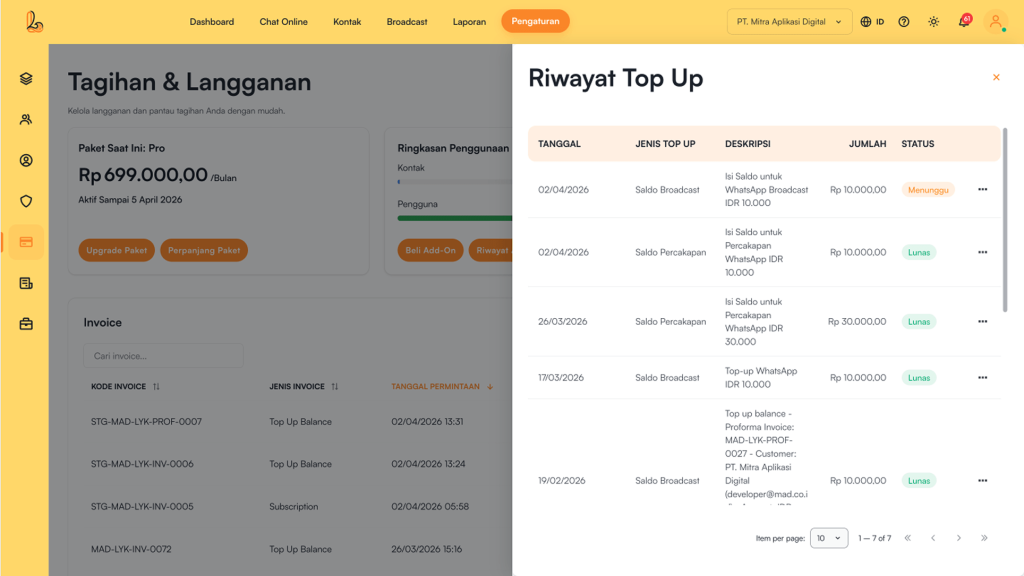
WhatsApp Usage History #
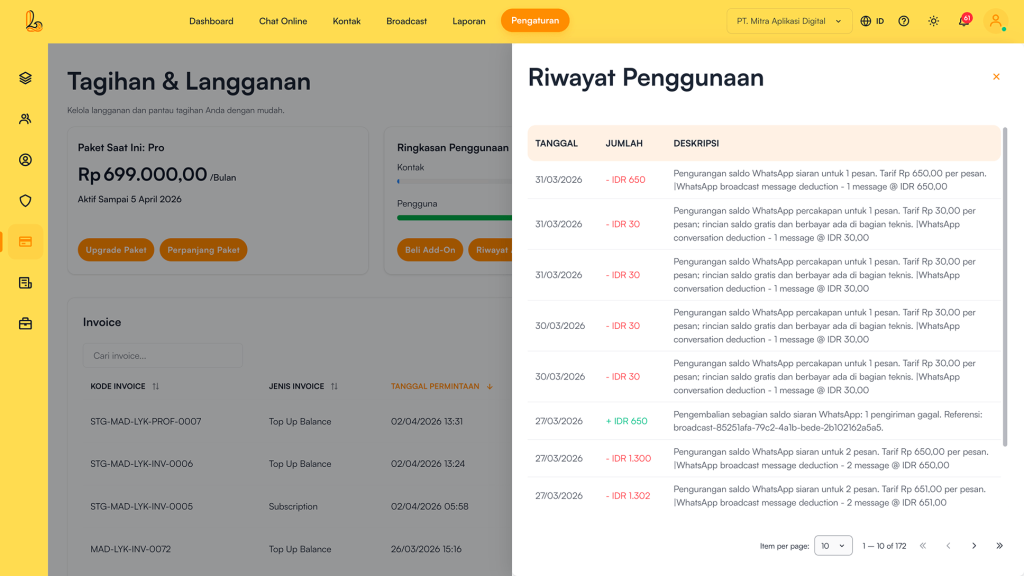
This feature displays a list of balance usage activities, such as sending messages to customers and sending broadcast messages. Through this feature, users can monitor the amount of balance used, the type of activity, and the time of usage in detail. Go to Settings>>Subcription , then click Usage History under WhatsApp Balance. The system will display the Usage History.
f. Invoice #
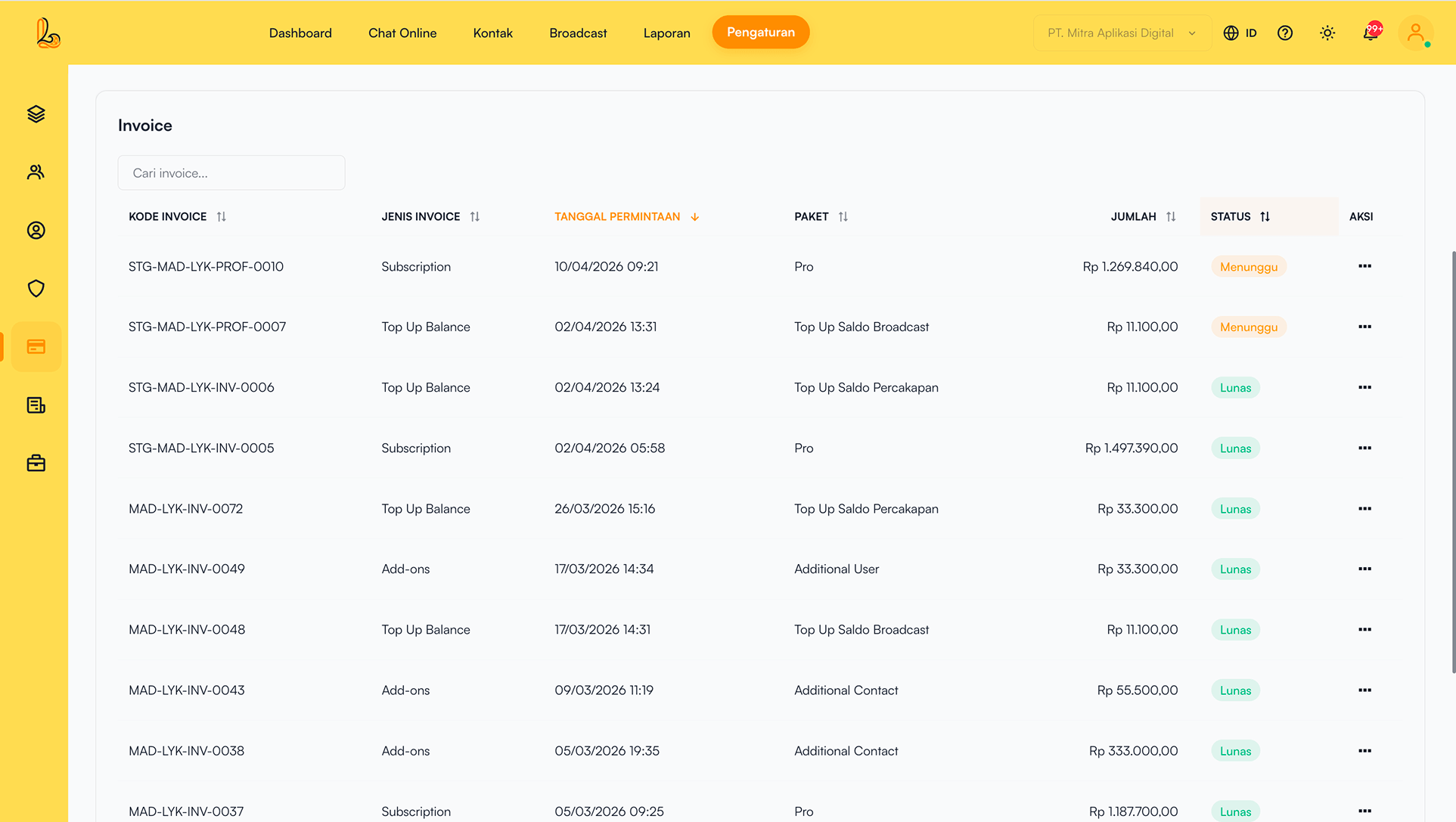
Invoice is used as proof of purchase transactions, including:
- Subscription plan purchase
- Subcription renewals
- Plan subcription (upgrade/downgrade)
- Buy add on.
- WhatsApp balance top-ups.
Each successful transaction is automatically recorded as an invoice.
| Colom | Description |
|---|---|
| Invoice Code | A unique code for each payment transaction, used as the invoice identifier |
| Invoice Type | Indicates the type of transaction, such as:
|
| Request Date | The date and time when the transaction was created or initiated by the user |
| Package | Indicates the type of transaction, such as:
|
| Amount | The total payment amount |
| Status | The invoice payment status:
|
| More | Options to manage the invoice (view invoice details or download the invoice). |
g. Unsubcribe #
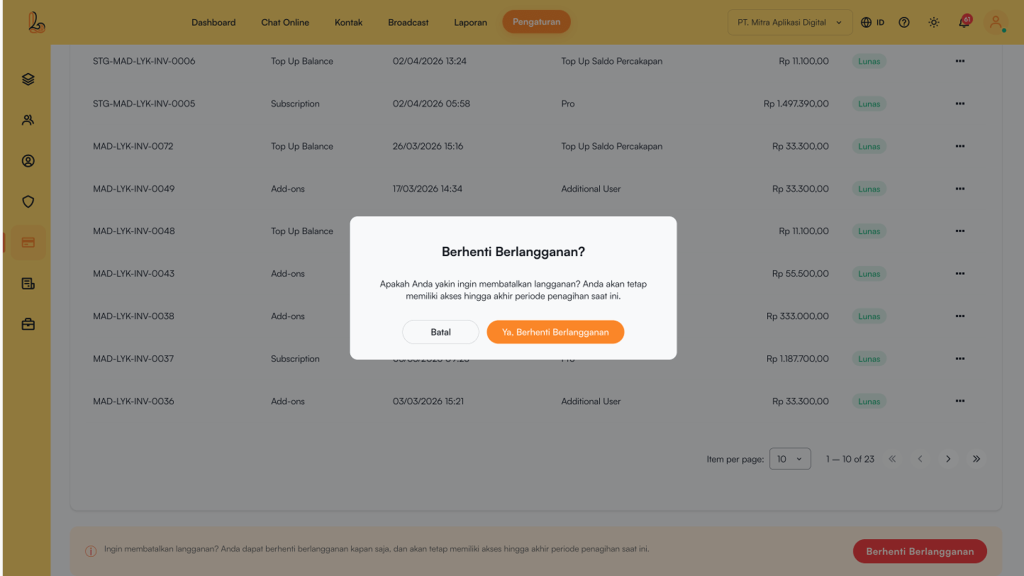
Users can cancel their subscription at any time. Once canceled, the plan will automatically be switched to the Free. Go to Settings>Subcription , then click Unsubcribe The system will display a subscription cancellation confirmation. Click Yes, Unsubribe to proceed with the cancellation.