Message Template are pre-defined messages used to initiate conversations with customers. These templates can be used for notifications as well as promotional messaging.
WhatsApp Message Template Categories #
Currently, Layanika only provides the Marketing category for WhatsApp message templates, which is intended for product promotions and sales.
Below is a reference table to support the creation of WhatsApp Message Templates:
| Colom | Description |
|---|---|
| Template Status |
|
| Template Name | Displays the name of the template |
| Category | Displays the template category |
| Language | Specifies the language used in the WhatsApp message template content |
Create a WhatsApp Message Template #
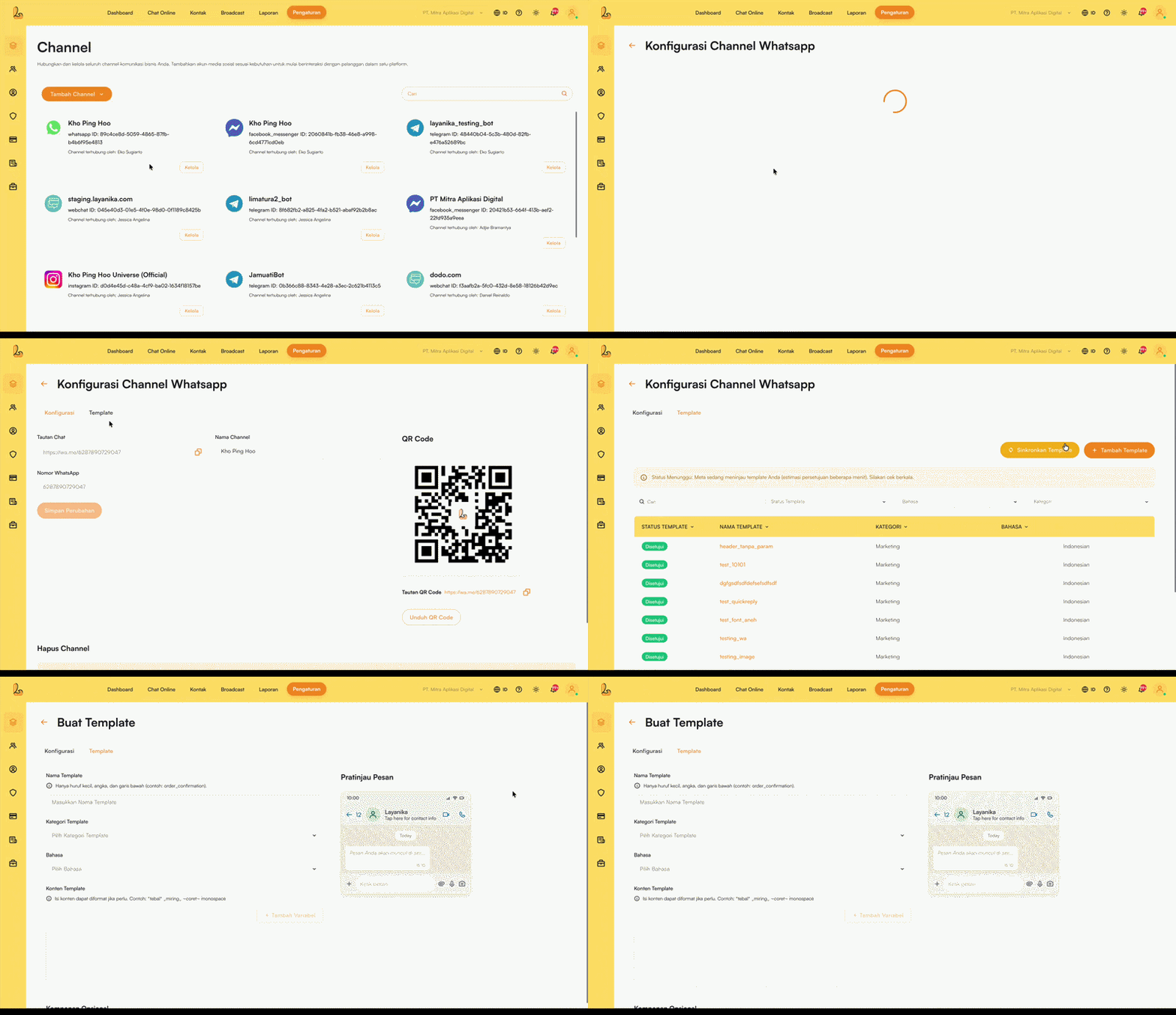
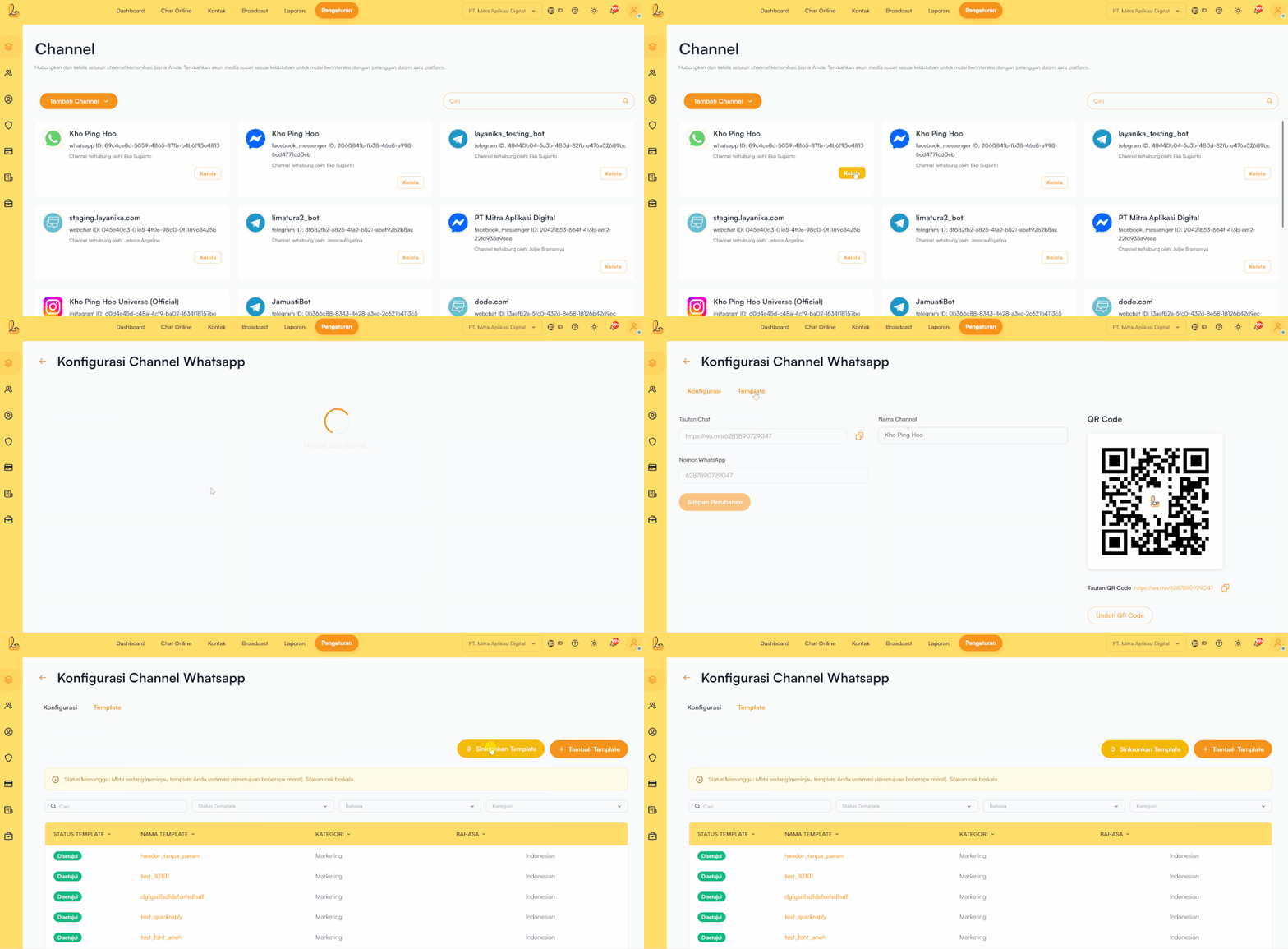
To create a WhatsApp Message Template, go to the Settings >>> select WhatsApp Channel >>> click Manage. Then, open the Template tab next to the configuration tab, then click the Add Template. Fill in the required information to create the template.
| Input | Description |
|---|---|
| Template Name |
Displays the name of the created template. Use lowercase letters, numbers, and underscores (_). Example: order_confirmation.
|
| Kategori Template | The category of the template based on the message purpose. |
| Language | Specifies the language used in the WhatsApp message template content |
| Template Content | Displays the message content that will be sent to customers. The content can use formatting such as bold, italic, or monospace. Maximum of 1,024 characters. |
| Variable |
Used to add dynamic data to the message template. Use variable format with double curly braces, for example: {{1}}.
|
| Header |
The header is optional and is used as the title or top section of the template. Supports:
|
| Footer | Used for additional information such as notes, disclaimers, or business identity. |
| Button |
Types of buttons available in the template:
|
Sync WhatsApp Message Templates #
Purpose of Sync Templates To check the latest status of whether a template has been approved by Meta or not.
Go to the Settings >> WhatsApp Channel >> Manage >> Template >> Sync Templates
Send a Message Template #
To initiate a conversation that has been closed (business-initiated), you can send a message template to the customer first.
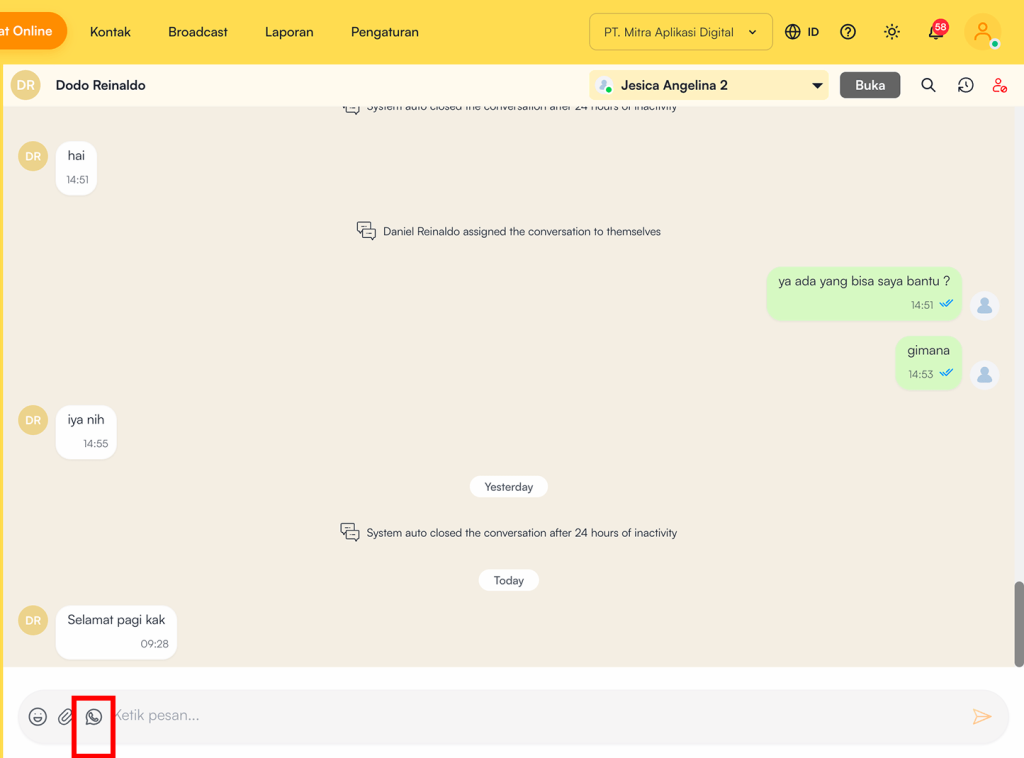
Click the Message Template icon located in the chat field. Personalize the message by setting the parameters. You can use variables such as values for {{1}}, {{2}}, and so on, then click Send Message send the template.