


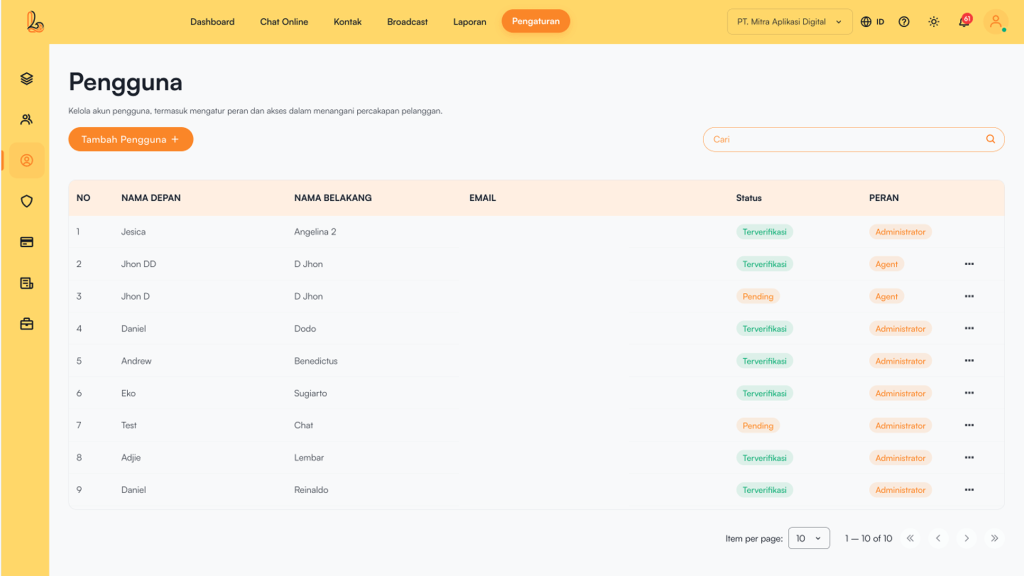
The User is used to manage all user (agent) accounts that have access to the system. Through this menu, users can add new users and assign roles to them.
| Colom | Description |
|---|---|
| First Name | The first name of the user being added. |
| Last Name | The last name of the user being added. |
| The email address used as the user’s login account. | |
| Status | The verification status of the user account:
|
| Roles | The user’s access level within your workspace (Administrator, Supervisor, Agent). |
| More | Menu for managing the user (edit or delete) |
a. Add User #
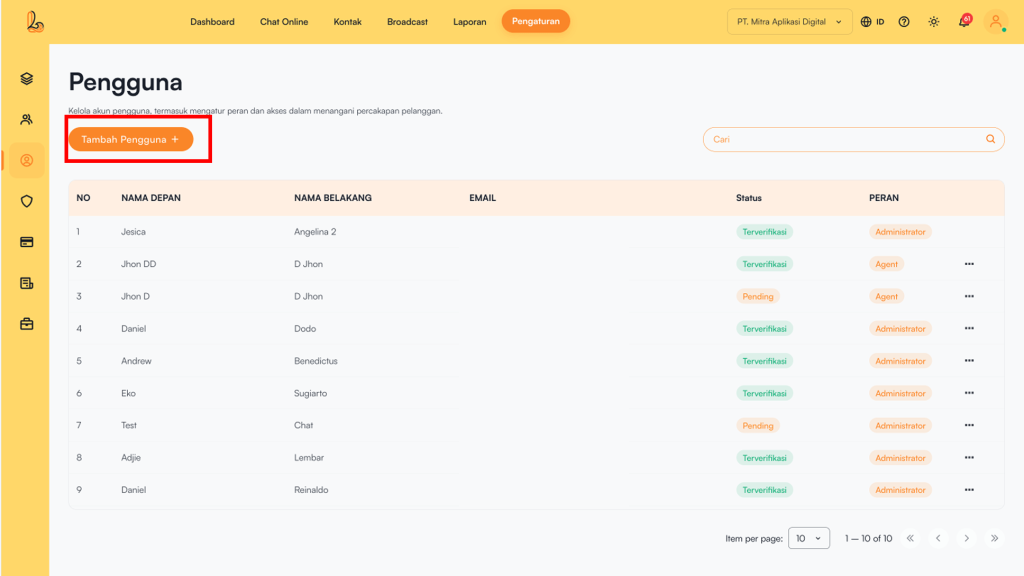
Add user Click Add User located in the top-left corner.
Fill in and complete the table below:
| Input | Description |
|---|---|
| First Name | The first name of the user being added. |
| Last Name | The last name of the user being added. |
| Email Address | The email address used as the login account. The email must be unique and cannot be the same as an already registered user. |
| Roles | The user’s access level within your workspace (Administrator, Supervisor, Agent). |
b. Edit User #
Edit User is the process of updating the information, roles, or access permissions of an existing user in the Layanika system.
This feature is used to adjust user data based on changes in organizational needs or team structure.
c. Delete User #
Delete User is the process of removing a user account from the Layanika system, so the user no longer has access to the platform.
This feature is used to manage users who are no longer active, have left the team, or no longer require system access.
Click the three dots on the right side of the user list, then select Delete.