

WhatsApp is an instant messaging application that allows users to communicate in real time over the internet. The platform supports various types of communication, including text messages, voice calls, video calls, and the sharing of media such as images, videos, documents, and location.

Requirements to Register for a WhatsApp Business Platform (API) Account #
Below are the requirements you need to prepare and understand before registering for a WhatsApp Business Platform (API) account:
Layanika Account #
You need a Layanika account to access the platform during the WhatsApp API registration process.
Phone number #
Use your own phone number. #
The phone number must be valid (able to receive SMS or phone calls for OTP verification).
If your number is already used in the WhatsApp Personal App or WhatsApp Business App,you must delete the account first. The phone number must not originate from restricted countries, including: Restricted Countries
Your phone number must not originate from any of the Restricted Countries:
Crimea (+7978)
Cuba (+53)
Iran (+98)
North Korea (+850)
Syria (+963)
Meta Business Manager (MBM) #
You need a Meta Business Manager MBM) account to register for the WhatsApp Business Platform (API). If you do not have one, you can create it during the integrated registration process.
Ensure your business complies with the WhatsApp Business Messaging Policy.
Make sure you have Admin-level access in MBM
When filling in your business information in MBM, ensure your website is valid
Connect WhatsApp Account to the WhatsApp Channel in Layanika #
Follow the steps below to connect your WhatsApp account to the WhatsApp channel in Layanika:
Step 1:
Go to the Settingsmenu, then select Channel.
Step 2:
Click add channelthen select whatsapp.
Step 3:
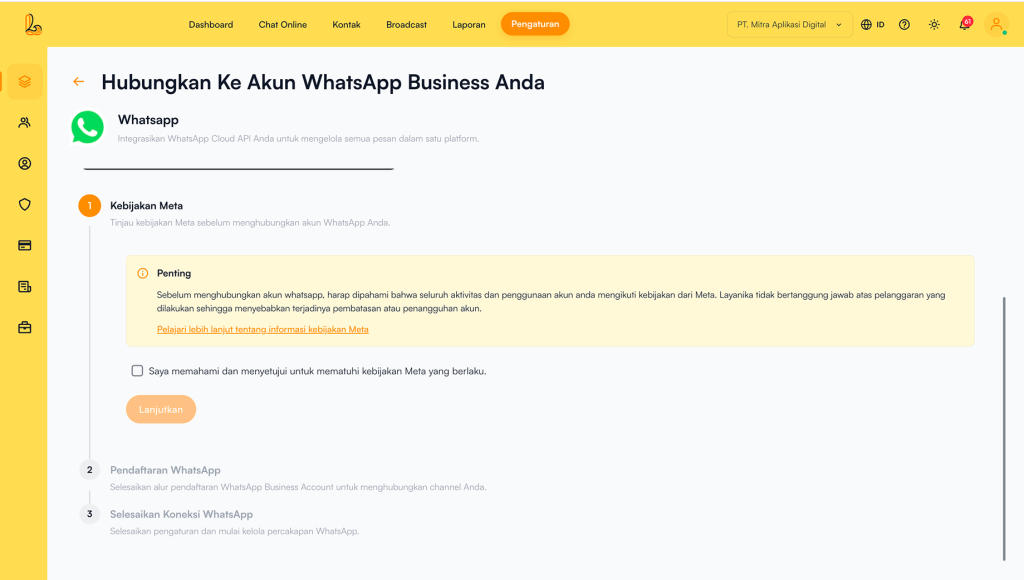
Please review the provided information carefully, as all WhatsApp usage will follow Metapolicies. If you would like to learn more, you can click the provided link to read the detailed policy.
After understanding the policy, check the confirmation box, then click Continue.
Step 4:
Click Connect with Facebook and log in to your Facebook account. Click Continue to grant Layanika permission to manage your WhatsApp Business account and billing.
Step 5:
Select an existing Meta Business account or create a new one. (The following steps will guide you through creating a new Meta Business account.) Fill in your business information and ensure your website is valid, then click Next.
Step 6:
Create or select your WhatsApp Business Account.
To create a new account:
- In the Select WhatsApp Business Account, choose Create a WhatsApp Business Account
- In the Create or Select WhatsApp Business Profile, choose Create a New WhatsApp Business Profile
- Click Next
Step 7:
Create your WhatsApp Business profile by filling in the required business details, then click Next.
Add your WhatsApp phone number.
Verify your phone number using the code sent via SMS or phone call, then click Continue
Channel Configuration #
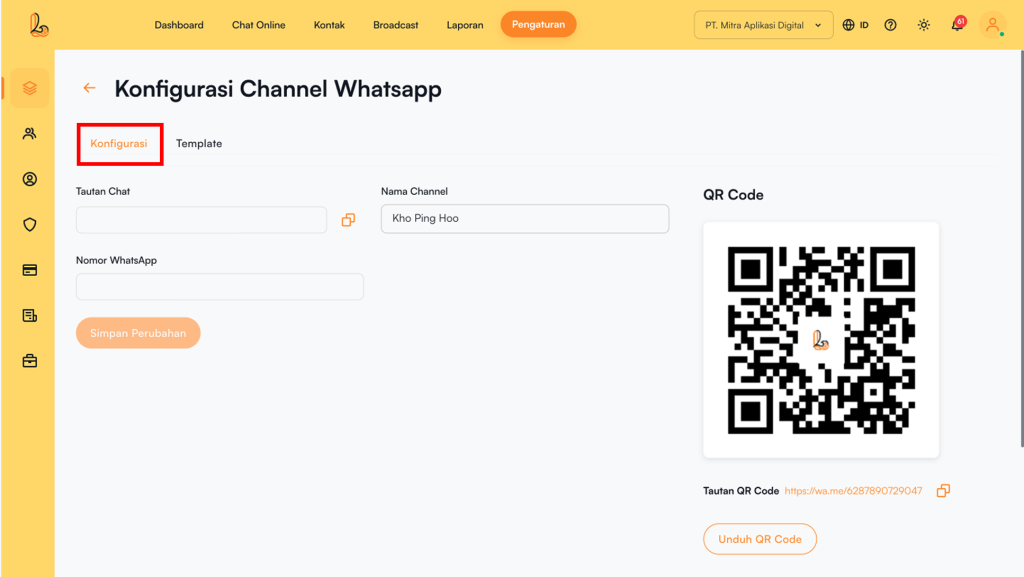
Halaman Konfigurasi WhatsApp page allows you to edit the channel name and provides a chat link and QR code to help customers start conversations with you.
Step 1:
Go to the Settingsmenu, then select Channel. Find your WhatsApp channel, click Manage
Step 2:
On the WhatsApp configuration page you will see the following:
- Channel Name: The channel name can be edited and is used internally to identify the channel.
- Chat Link: The WhatsApp link is a short URL that directs customers to start or continue a conversation with your WhatsApp number. Customers will be redirected to a new or existing thread depending on whether they have previously messaged your WhatsApp number.
- WhatsApp Number: The WhatsApp number registered to your Layanika WhatsApp channel.
- Qr Code: You can use the QR code to share the chat link with your contacts by clicking Download QR Code.
Delete WhatsApp Channel #
You can remove the WhatsApp channel from Layanika. Below is a guide on how to delete the channel:
Step 1:
Go to the Settings > Channel. Then Your WhatsApp Channel, then click Manage
Step 2:
On the WhatsApp channel configuration page, click Delete Channel. The system will display a confirmation prompt asking whether you want to remove the WhatsApp channel. If you are sure, click Yes, Delete.