


Tag are labels used to group contacts or conversations within the Layanika platform.
By using tags, users can organize data more effectively, making it easier to search, segment, and manage communication.
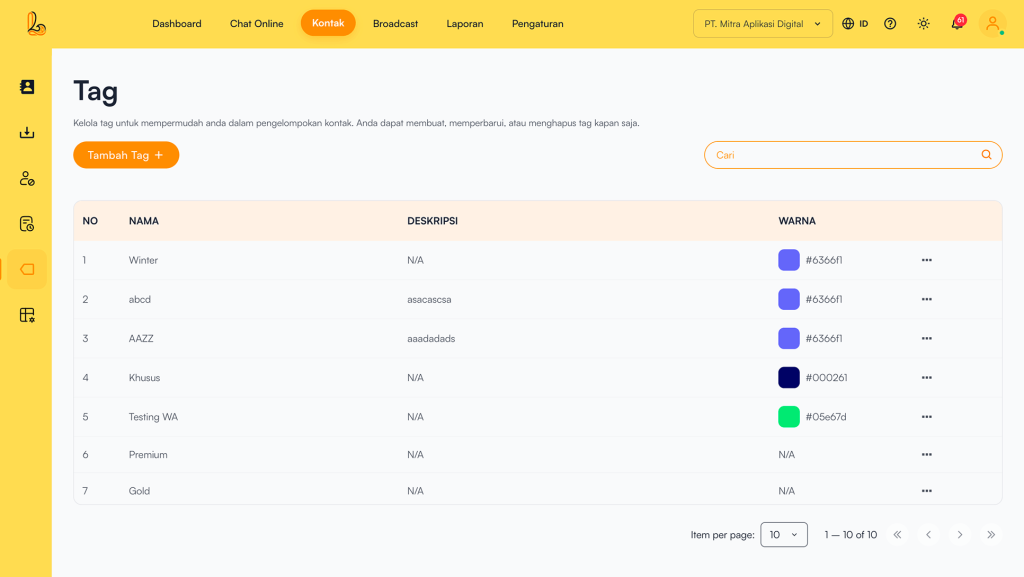
The Tag table includes the following:
| Colom | Description |
|---|---|
| Name | The tag name used to categorize contacts |
| Description | Additional explanation about the tag (optional) |
| Color | The tag’s color identity to help with visual recognition |
| More | Options to manage the tag (edit or delete) |
a. Add Tag #
To add a tag to a contact, users can create a new tag. Follow the steps below to add a new tag:
Step 1:
Click Add Tag located in the top-left corner.
Step 2:
The system will then display the Tambah Tag, lalu isi informasi seperti:
| Input | Description |
|---|---|
| Tag Name | The tag name used to categorize contacts |
| Description | Additional explanation about the tag (optional) |
| Color | The tag’s color identity to help with visual recognition |
Step 3:
Ensure all information is correctly filled in, then click Save
b. How to Use Tags #
There are two ways to add a tag to a contact:
- Go to Contact, find the Tag field, then enter the tag name that has been created.
- Click the three-dot menu on the right, select ubah contact, find the Tag field, then enter the tag name.
c. Edit Tag #
Edit Tag is the process of updating the name, description, and color of an existing tag in the Layanika system.
This feature helps maintain consistent naming, adapt to business needs, and ensure that data management remains organized and relevant.
To edit a tag, click the Tag icon and select the tag you want to update from the list. Click the three-dot menu on the right, then select Update. After making the changes, click Save. Updated. Setelah selesai merubah klik tombol Save.
d. Menghapus Tag #
Delete Tag is the process of removing labels that are no longer used from the Layanika system.
This feature helps keep data structured, relevant, and easy to manage, preventing confusion when handling contacts and conversations.
To delete a tag, click the three-dot menu on the right side of the tag you want to remove, then select Delete.