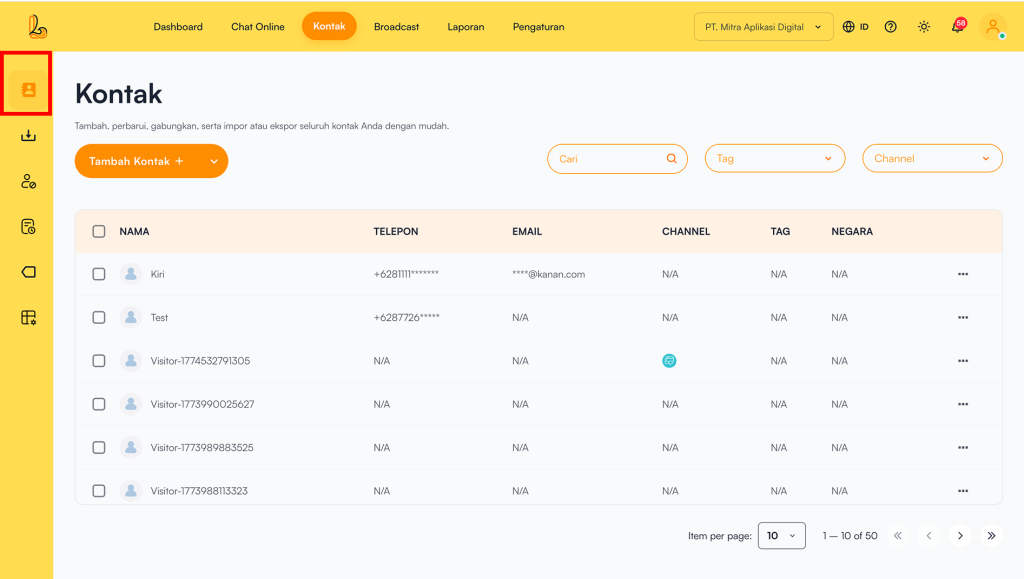
Contact List is a feature that displays all customer data stored in the Layanika system in a list or table format.
Through this feature, users can view, search, and manage all contacts in a centralized manner.
The following items are included in the contact list:
| Colom | Description |
|---|---|
| Name | Contact name or customer identity |
| Phone | Contact phone number (if available) |
| Contact email (if available) | |
| Channel | The channels associated with the contact (e.g., Facebook Messenger, Instagram, Webchat, Telegram, WhatsApp). |
| Tag | Labels or categories assigned to the contact |
| Country | Contact’s country of origin |
| More | Menu for managing contacts (edit, delete, and block contacts) |
a. Add Contact #
Users can add customer contacts to the Contacts menu. Below is a guide to adding a contact:
Step 1:
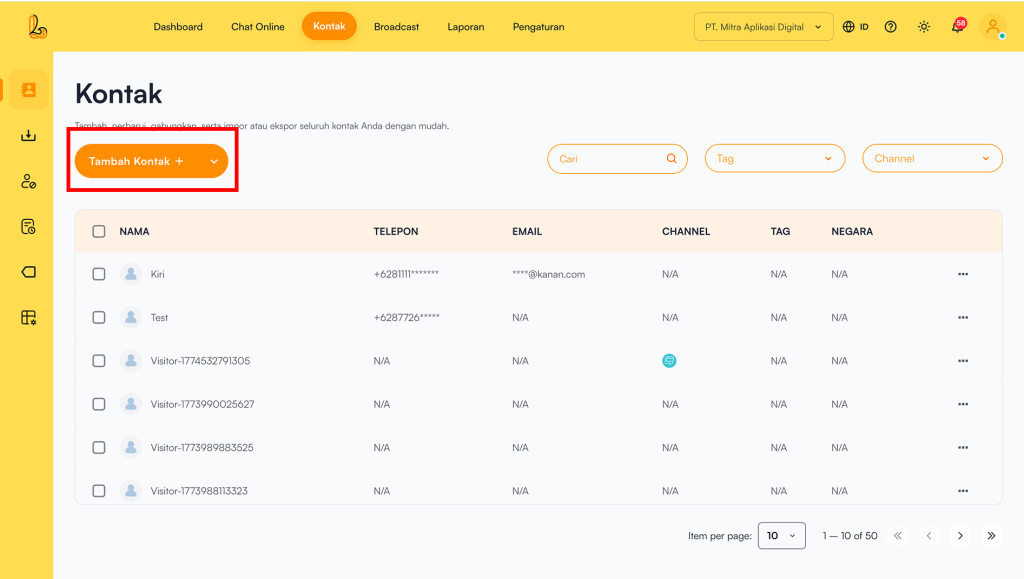
To add a contact, click Add Contact located in the top-left corner.
Step 2:
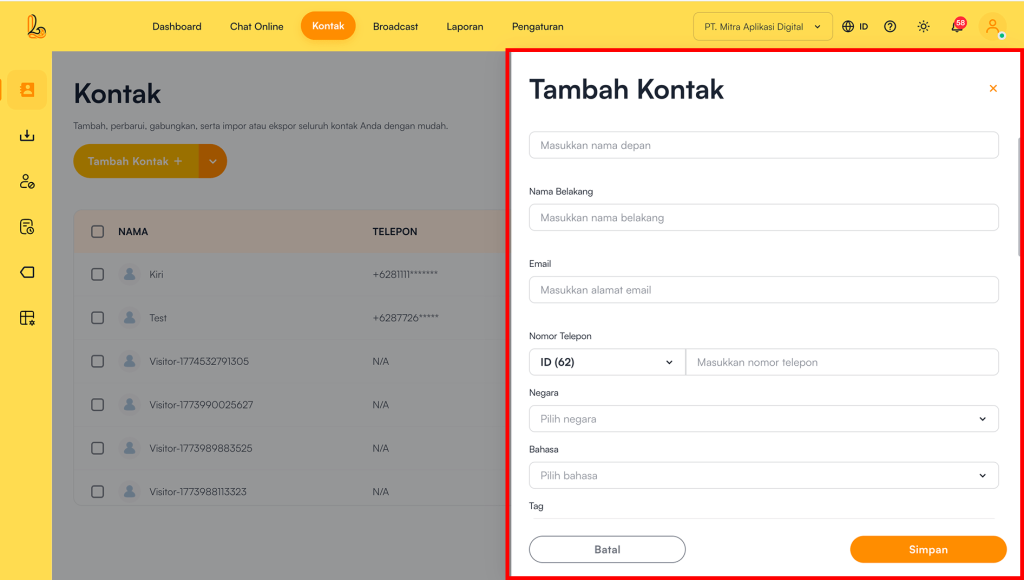
Layanika will display a form that can be filled with detailed customer information.
- The information you can add includes: first name, last name, contact information: such as email, country, phone number, language, address, and tags.
- Additional Details: extra information previously created as custom variables in the Contacts menu.
Step 3:
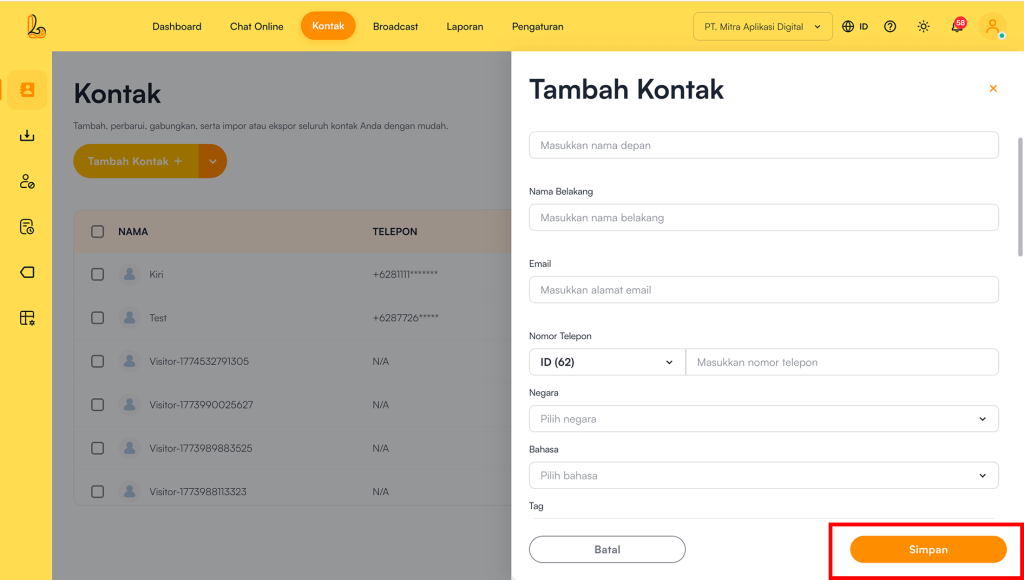
Then, users can save their changes by clicking the Save.
b. Edit Contact #
Users can update customer contact information in two ways:
- Via Contact Profile
Select the customer’s contact name from the contact list. Click Updated to update the contact information, then click Save once the changes are complete.
- Via Edit Action
Select the customer’s contact name from the contact list. Click Updated to update the contact information, then click Save once the changes are complete.
c. Delete Contact #
Users can delete contacts from the contact menu.
o delete a contact, select the contact from the list, then click Delete to remove the contact. After that, the system will display a confirmation prompt to ensure you want to delete the contact. Click Delete to confirm.
d. Block Contact #
In addition to blocking contacts from the live chat menu, users can also block contacts from the contact menu.
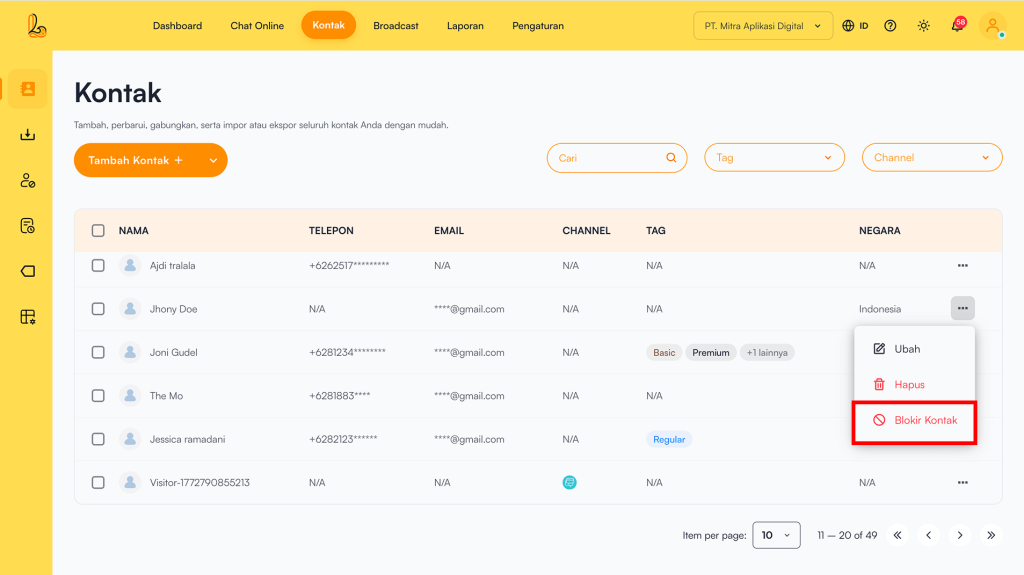
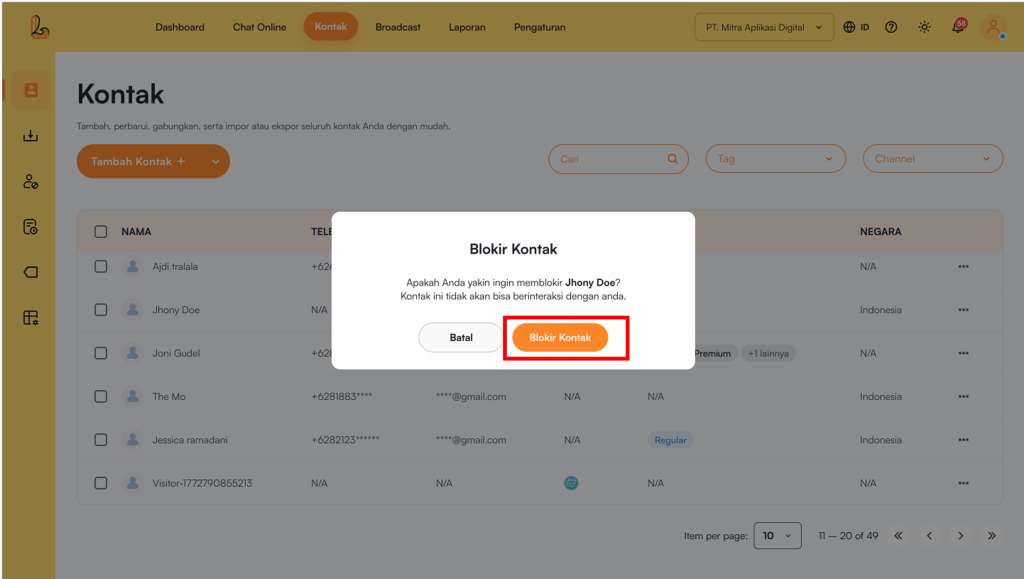
To block a contact, select the contact from the contact list. Click Block Contact to block the contact. A confirmation prompt will appear to ensure you want to proceed. Click Block Contact.
e. Contact Search #
Users can easily search and filter customer data to find the information they need quickly and efficiently.
Users can search for contacts in the following ways:
- Search by Name
Use the Search field to enter a contact name. The system will automatically display contacts that match the entered keyword. - Filter by Tag
Click the Tag dropdown to view available tags.
Users can select one or multiple tags to display contacts grouped under those tags. - Filter by Channel
Click the Channel dropdown to view connected communication channels.
f. Import Contacts #
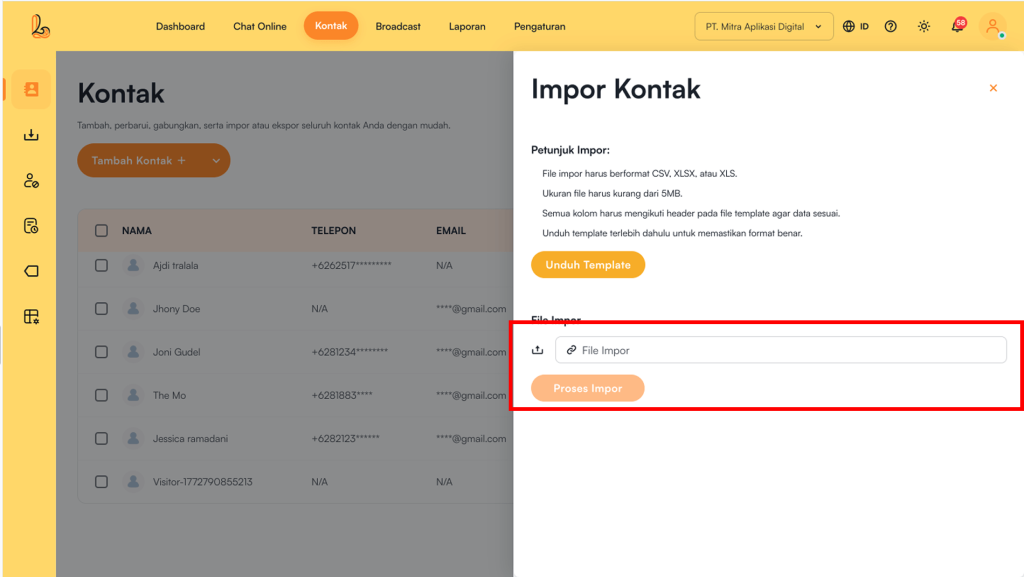
From the contact list, users can import customer data. This allows users to add multiple contacts at once more efficiently. Below is a guide to importing contacts:
Step 1:
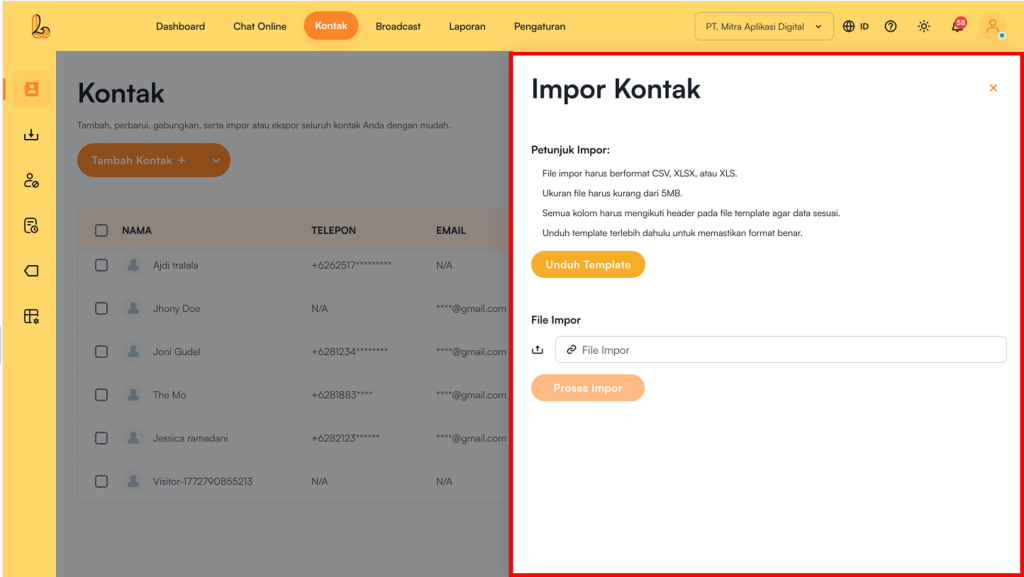
Click the arrow next to the Add Contactthen select Import. The system will then display the Import Contacts.
Step 2:
Before uploading a file, make sure to follow these requirements:
- File format: Must be CSV, XLSX, or XLS.
- File size: Maximum 5MB.
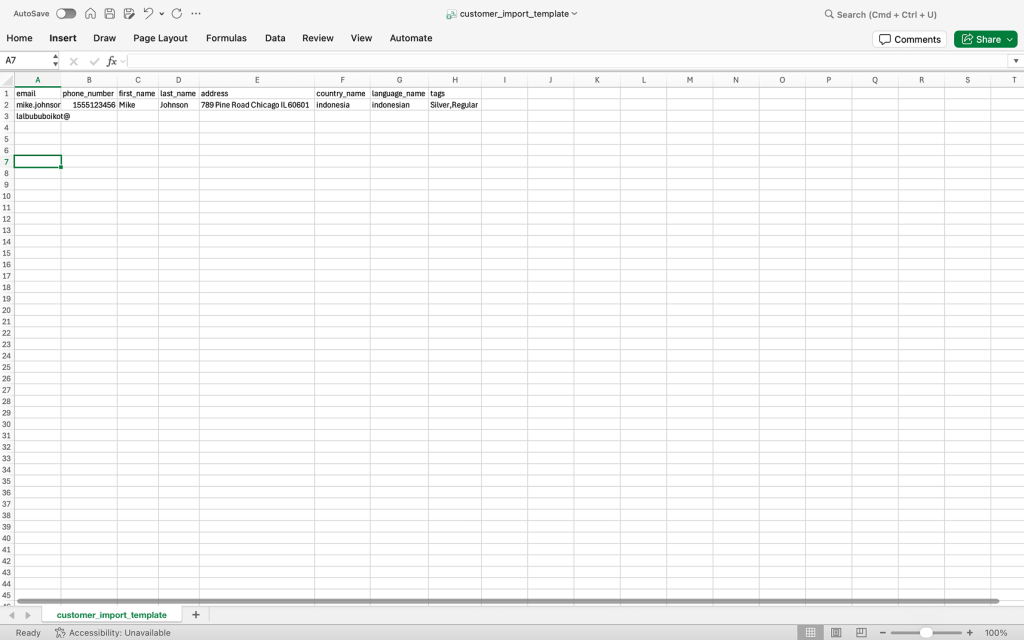
- Data structure: All columns must follow the headers defined in the system template header based on the system template.
- Download template: Download the template first to ensure the data format is correct.
Step 3:
Upload your file. Once the file is successfully uploaded, the file information will appear in the upload section. Click Process Import to process the data from the uploaded file.
Step 4:
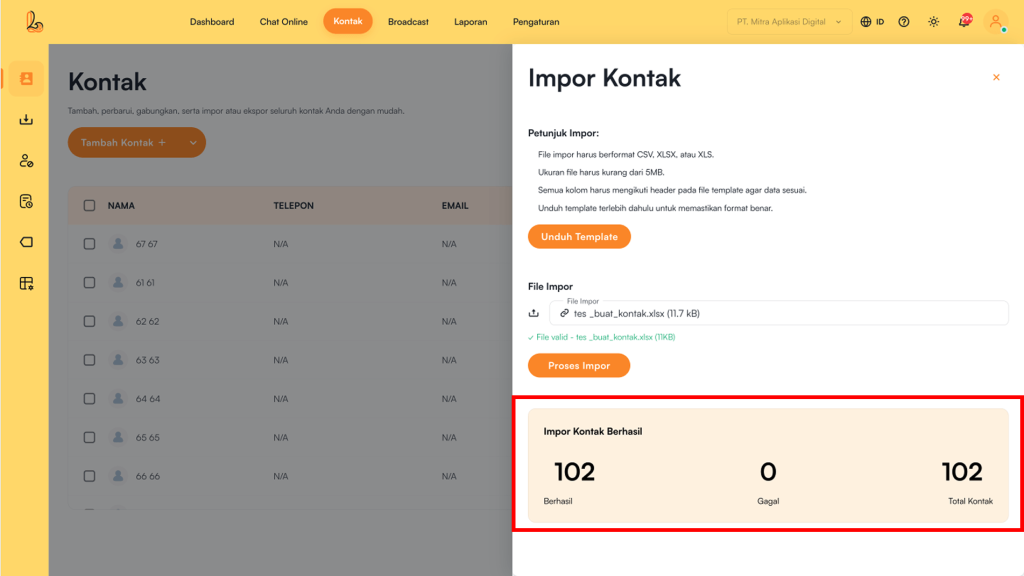
If the process is successful, the system will display a confirmation message indicating that the data import was completed, along with a summary of the number of contacts successfully added to the contact list.
g. Export Contacts #
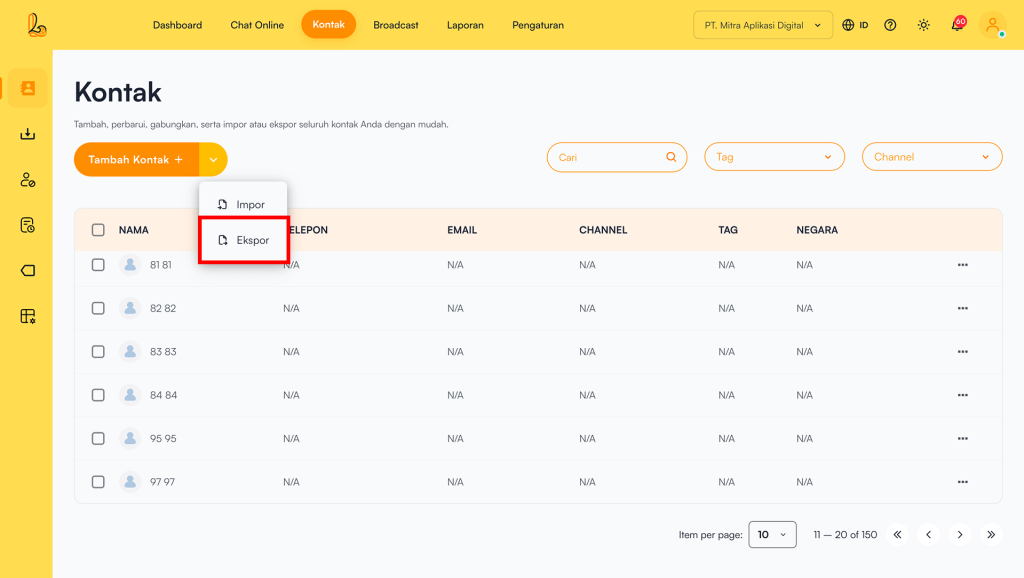
In the contact list, users can export contacts. This feature makes it easier to retrieve customer contact data in large quantities.
Step 1:
Click the arrow next to Add Contactthen select Export.
Step 2:
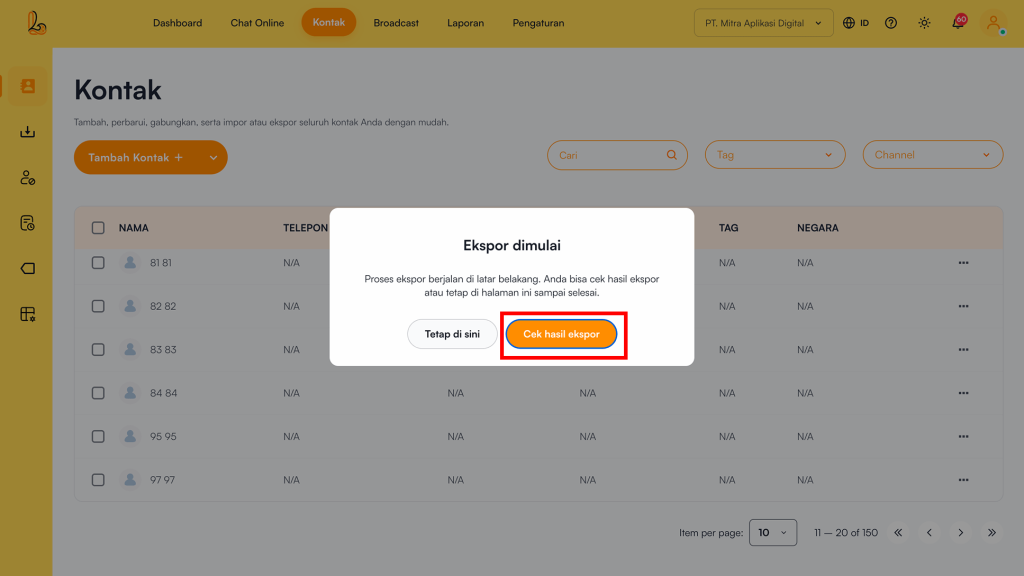
There are two options available Stay and Check Export Results
- StayThe user will remain on the contact menu. The system will notify the user when the file is ready to download.
- Check Export Results: The user will receive a notification and be redirected to the Import/Export History.
h. Merge Contacts #
If there are contacts with the same name but different phone numbers, users can merge them into a single contact. This feature allows one contact name to have two different phone numbers.
How to merge contacts:
Step 1:
Select the contacts you want to merge by checking the boxes on the left. Then, click Merge Contacts located next to the Add Contact.
Step 2:
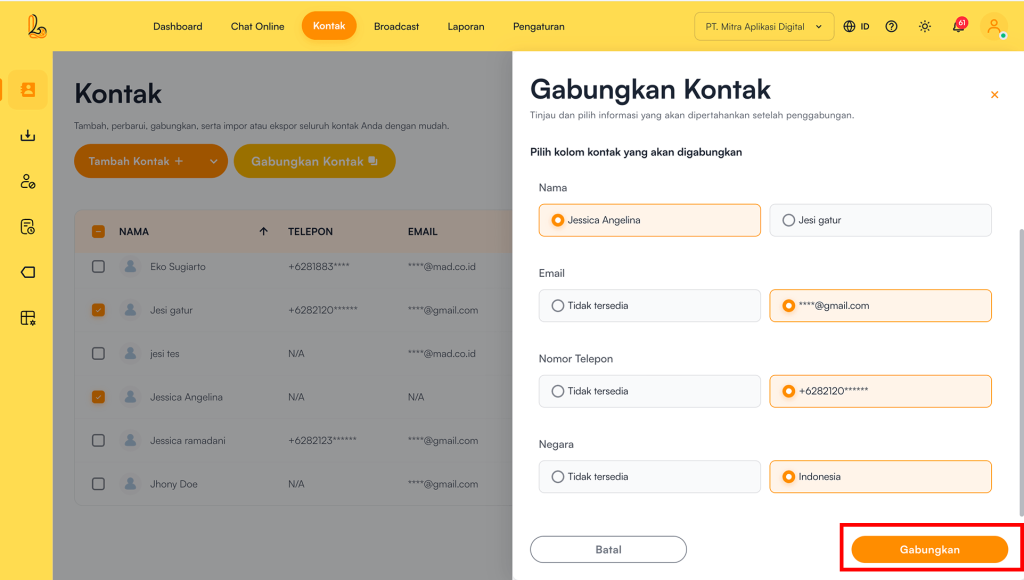
The system will display the contact merge page. Select the information you want to retain from each contact.
Step 3:
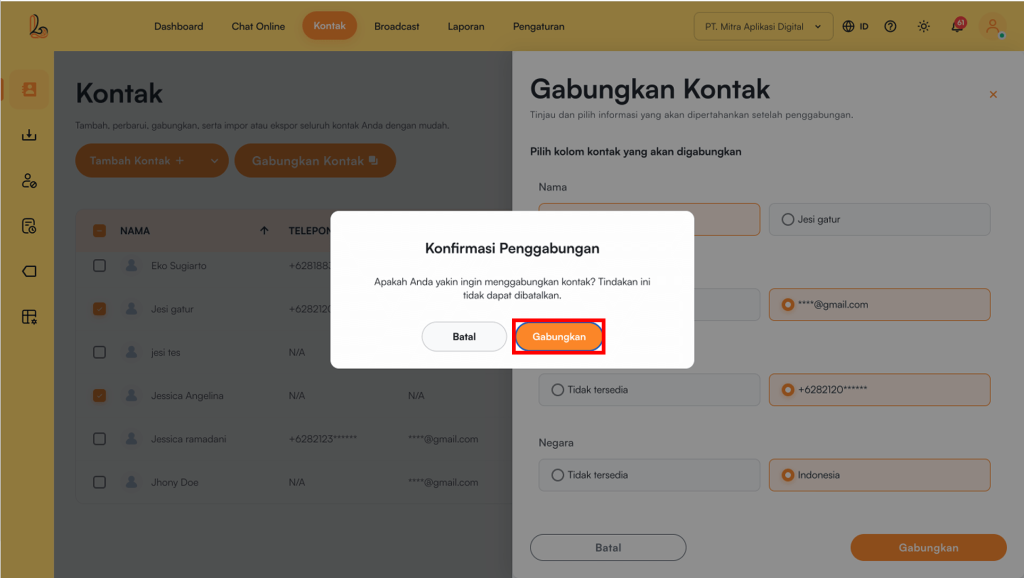
Click Save to proceed with merging the contacts. A confirmation prompt will appear to ensure you want to continue. Click Marge.
Step 4:
Users can view the merged contact by clicking the contact name to open the contact profile. Click the Merge History button to see the detailed history of the contact merge.