

The Conversation Page is the main area within the Online Chat menu where users (agents) interact directly with customers. On this page, all communication activities are displayed in real time, including incoming messages, outgoing messages, and system activities such as assignments and conversation closures.
This page consists of three main components:
- Conversation Header
- Conversation Area
Conversation Header #
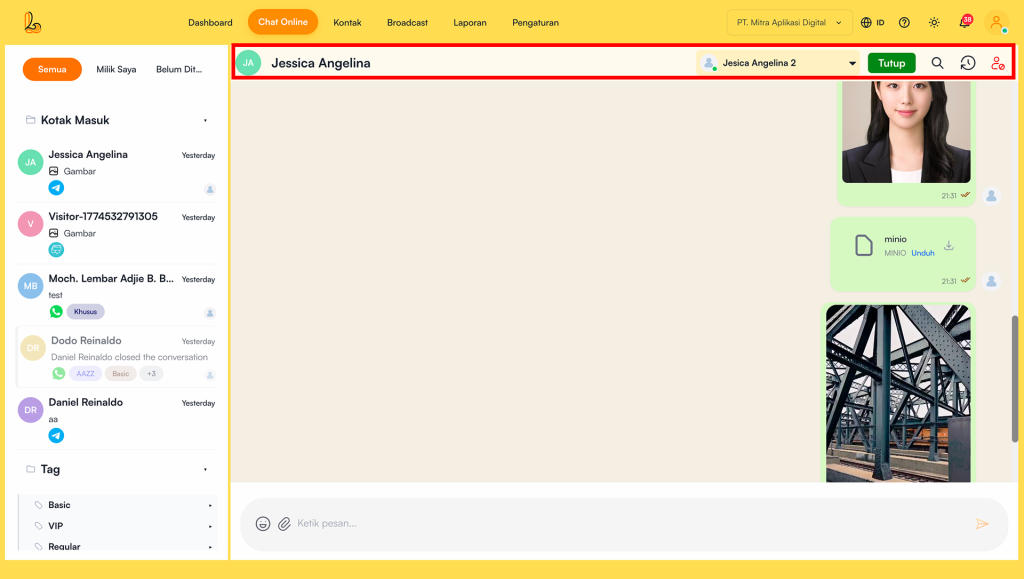
The Conversation Header is located at the top of the chat page and serves as the main information section for the conversation, including:
- Contact Profile
- Assignment
- Open and Close Conversation
- Message Search
- Interaction Log
- Block Contact
1. Contact Profile #
In the Inbox menu, you can view contact identity details through Contact Profile.
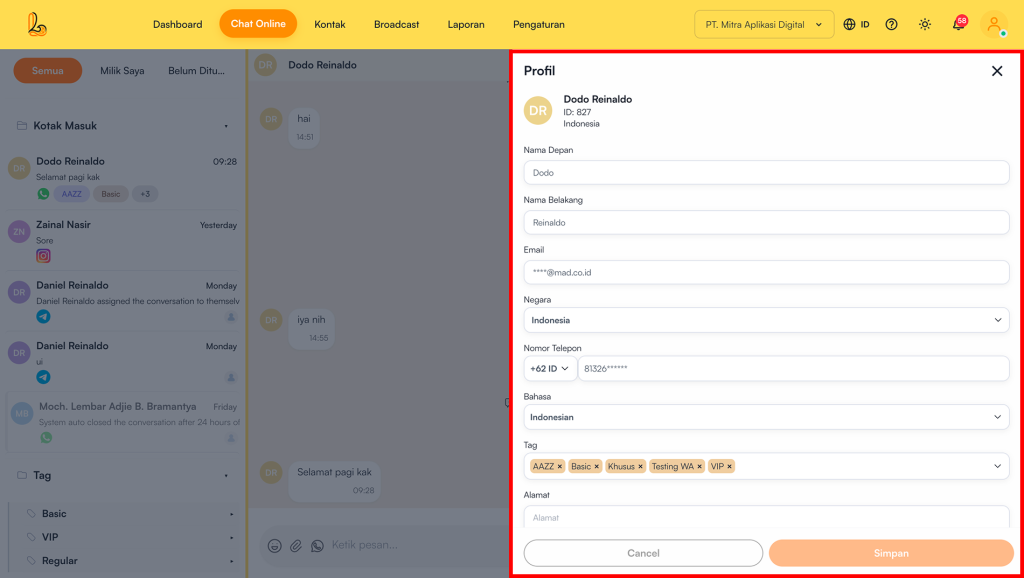
Users can also fill in or complete contact information.
The following information can be added:
- First name
- Last name
- Contact information: email, country name, phone number, language, address, and tags.
2. Assigment #
Assignment is used to assign customer conversations to another agent for handling.
When an agent assigns a conversation to another agent, the conversation will automatically be removed from their view and transferred to the assigned agent.
3. Unassigning a Contact (Unassigned) #
An unassigned status only occurs when a new message is received and has not yet been responded to by an agent.
Once a message has been responded to by an agent, the Assignment field will display the name of the assigned agent.
4. Open a Conversation #
Opening a conversation is the process of accessing or resuming interaction with a customer through the Online Chat module in Layanika.
This feature allows agents to view conversation details and continue communicating with customers in real time.
5. Message Search #
Message Search is used to conversation history with customers.
6. Interaction Log #
The Interaction Log helps you monitor all activities performed by both users and customers. It provides visibility into actions such as assignments and conversation closures, making it easier to track what has happened within a conversation.
How to access it:
- Click the Interaction Log option located next to the Block Contact feature to view the activity history.
- The Interaction Log displays a list of activities, such as:
a. Assigment
b. Conversation closures - Users can also filter the Interaction Log based on a specific date range.
7. Block Contact #
If you receive messages that are disruptive, spam, or unwanted, you can use the Block Contact feature to prevent future interactions from that contact.
How blocking a contact works:
Select Block Contact #
Click the Block Contact option located on the right side to initiate the blocking process.
Confirm Blocking #
The system will prompt a confirmation to ensure you want to block the contact. Select Block to proceed.
Conversation Area #
The Conversation Area is the main section in the center of the page that displays the entire communication between the customer and the agent in chronological order (based on time).
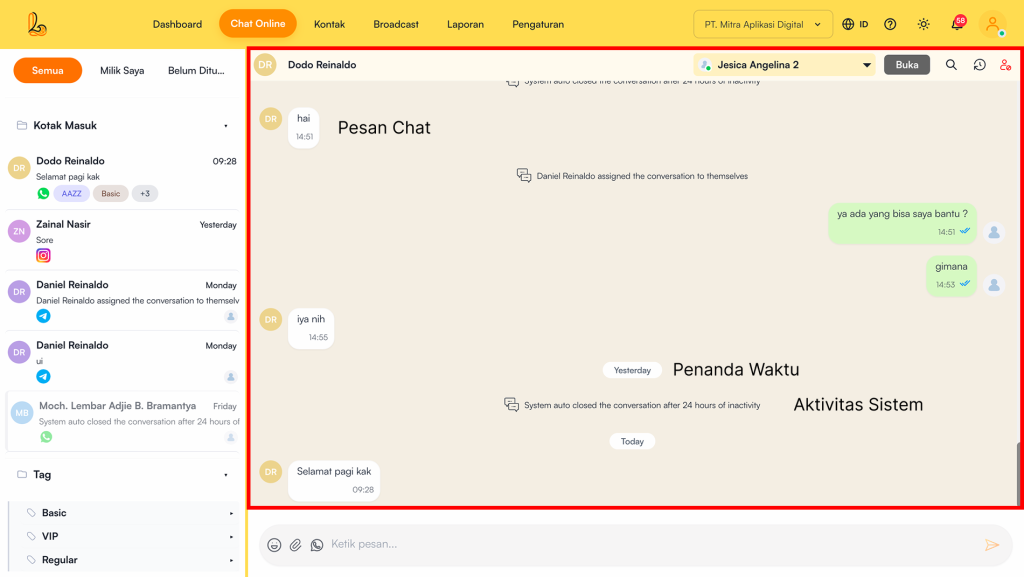
Components in the conversation area:
- Chat Messages
- Timestamps
- System Activities
1. Chat Messages #
Chat messages are the main element in the Conversation Area, displaying the communication between customers and agents.
The information included in this component consists of:
- Messages from customers (displayed on the left side)
- Messages from agents/users (displayed on the right side)
- Each message also includes:
- Timestamp (time the message was sent)
- Message status (e.g., sent, delivered, read)
2. Timestamp #
The timestamp acts as a separator within the conversation area, grouping messages based on specific time periods. It is typically displayed in the center of the conversation as a divider between chat sessions.
Common time labels include:
- Today
- Yesterday
- Specific dates (when applicable)
3. System Activities #
System messages are automated notifications generated by the system to record activities within a conversation, whether performed by the system or by users (agents).
These activities may include:
- Automatic conversation closure notifications:Indicate that a conversation has been automatically closed by the system, usually after a period of inactivity (e.g., 24 hours)
- Assignment activities: Show that a conversation has been assigned or transferred to a specific agent/user
Other activity updates: Such as changes in the conversation status
Message Input #
The Message Input is located at the bottom of the page and is used by agents to compose and send messages to customers.
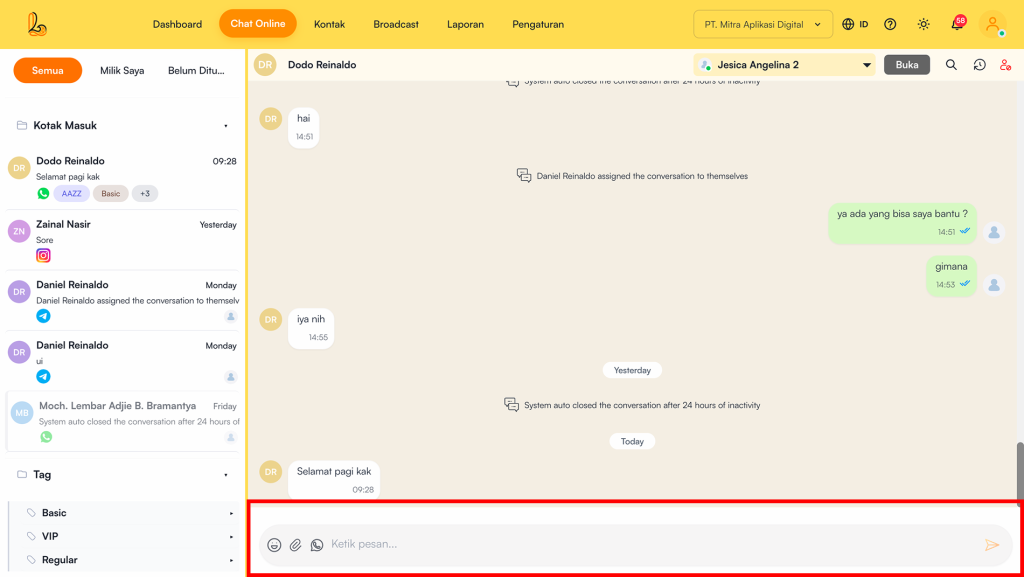
Components in the conversation area:
- Message Input Field
- Emoji Icon
- Attachment Icon
- WhastApp Icon
1. Message Input Field #
The Message Input Field is a text area used to type messages that will be sent to customers.
2. Emoji Icon #
The Emoji Icon allows users to add expressive elements to their messages.
3. Attachment Icon #
The Attachment Icon is used to send files or media to customers. It supports sending:
- Image
- Document
- File
4. WhatsApp Icon #
The WhatsApp Icon is used to access message templates that have been created within the WhatsApp channel.
5. Send Button #
The Send Button is used to send the message that has been composed to the customer.