

The User menu is used to manage all user (agent) accounts with access to the system. Through this menu, users can add new users, assign roles, and manage user access status for handling customer conversations.
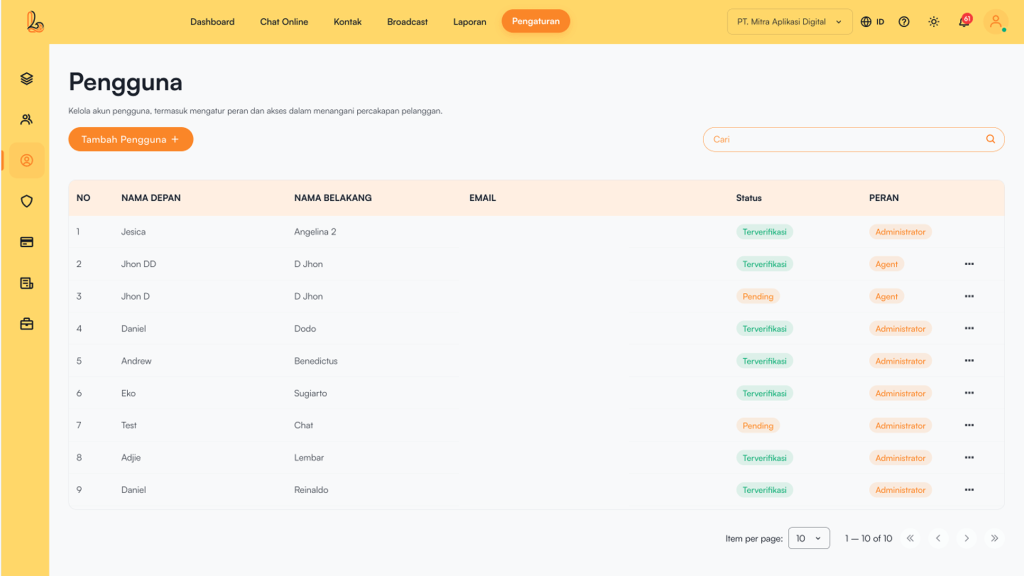
The following information is displayed in the table:
| Colom | Description |
|---|---|
| First Name | The user's first name |
| Last Name | The user's last name |
| The user's email address | |
| Status | Status verifikasi akun pengguna
|
| Roles | The user's access level or role within the system (Administrator, Supervisor, Agent) |
| More | Menu for managing the user (edit or delete) |
User Role Types #
1. Administrator
- Has full access to all system features.
- All menus and actions are enabled by default.
- Access cannot be restricted for security reasons.
- Can manage access permissions for:
- Supervisor
- Agent
2. Supervisor
- Has limited access (not full like an Administrator).
- Can manage access permissions for Agent.
- Cannot modify or manage Administrator permissions.
3. Agent
- Does not have access to permission settings.
- Does not have access to the User Role Permissions.
- Performs operational tasks based on assigned permissions.
a. Add User #
Add User digunakan untuk menambahkan pengguna baru pada workspace anda. Berikut cara menambahkan pengguna baru:
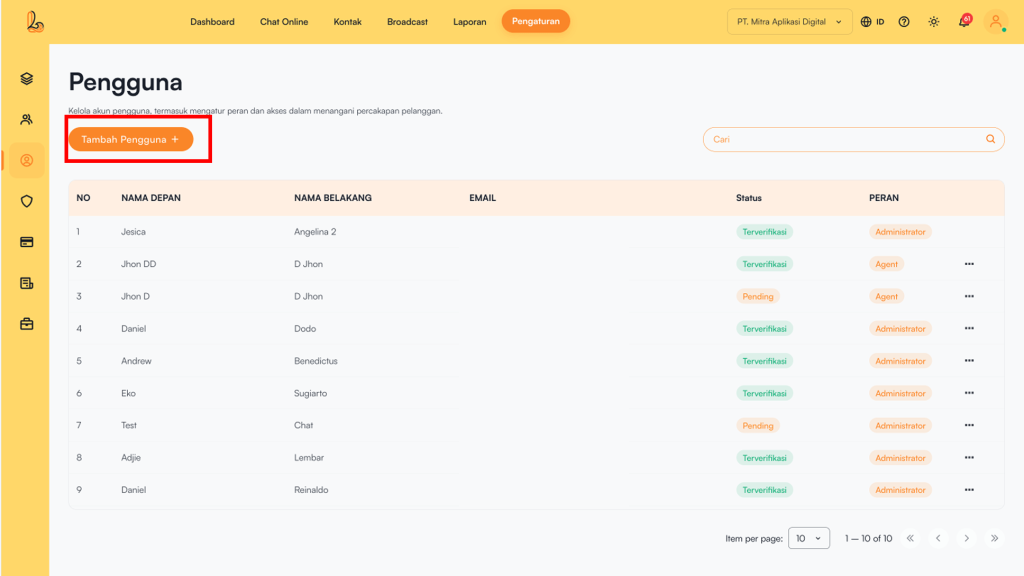
Step 1:
Click Add User located in the top-left corner.
Step 2:
The system will then display the Add User Lalu isi formulir seperti:
| Input | Description |
|---|---|
| First Name | The user's first name |
| Last Name | The user's last name |
| Email Address | Email yang digunakan sebagai akun login. Email yang digunakan tidak boleh sama dengan pengguna yang sudah terdaftar |
| Roles | The user's access level within the system (Administrator, Supervisor, Agent) |
Step 3:
Make sure all information is filled in correctly, then click Save.
If the user has not received an invitation to join your workspace, you can click Resend Invitation.
b. Edit User #
Pengguna dapat melakukan pengubahan nama pengguna, alamat email , hingga peran pengguna. Untuk mengubah pengguna dapat dilakukan dengan klik titik 3(tiga) disebelah kanan pada daftar pengguna yang akan diubah, plih Updated. Setelah selesai merubah klik tombol Save.
c. Delete User #
Users can delete accounts that are no longer needed using the Delete User Hal ini bertujuan untuk menghilakan pengguna yang sudah tidak revelan lagi. Untuk menghapus Pengguna bisa dilakukan dengan klik titik 3(tiga) disebelah kanan pada daftar Pengguna yang akan dihapus, pilih list Delete.