


Import/Export History is a feature that displays a record of contact data import and export activities performed within the Layanika system.
This feature allows users to track, monitor, and audit each contact data management process.
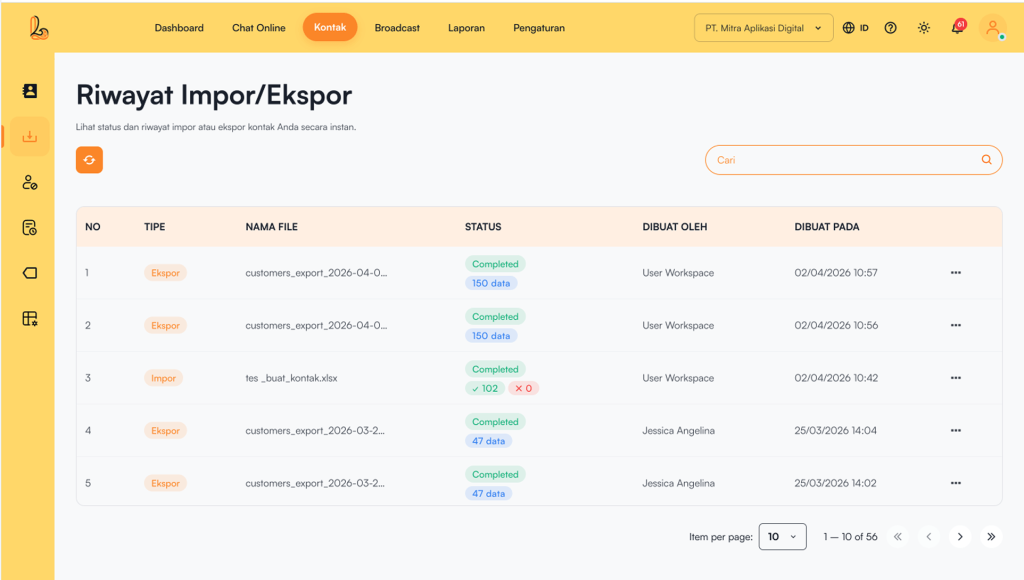
The Import/Export History list consists of:
| Colom | Description |
|---|---|
| Type | Activity type such as Import/Export |
| Filename | Activity type such as Import/Export |
| Status | The file name used in the import/export process. |
| Created By | User who performed the activity |
| Created At | Date and time the activity was performed |
| More | Additional options such as downloading the exported file or viewing the logs |
a. Download Contact Export File #
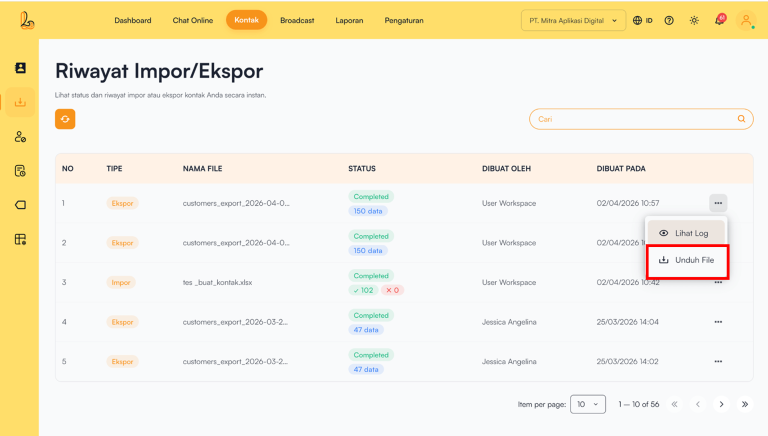
To download the file, follow the steps below to download an imported file:
- Select the Export you want to download from the Import/Export history list.
- Click the action button (three dots) on the right, then select Download File
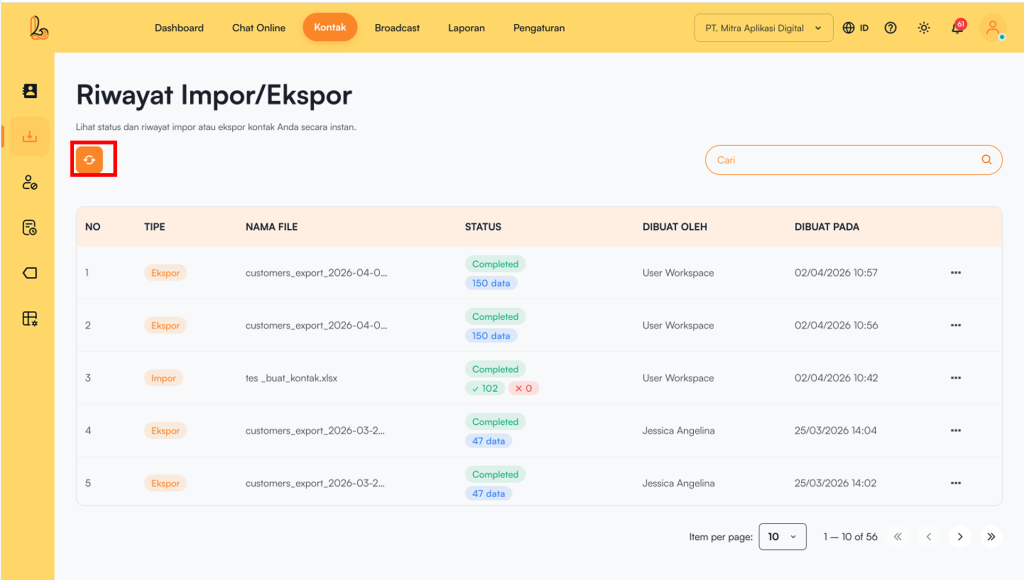
b. Refresh Import/Export History #
The refresh button is used to update the contact Import/Export history displayed in the table. By clicking this button, the system will retrieve and display the latest data, including status updates for ongoing Import/Export processes.
c. Import/Export History Log #
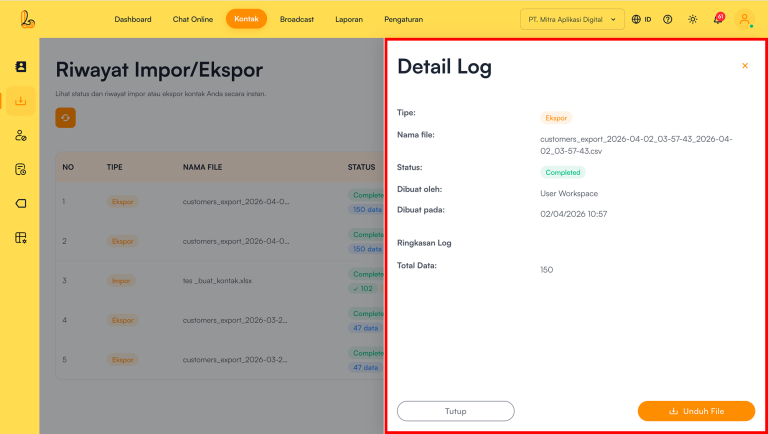
View Log is used to display detailed information about contact import/export processes. Through this feature, users can view file details, process status, and the number of records successfully processed.
| Information | Description |
|---|---|
| Type | Indicates the type of process performed (Import/Export) |
| Filename | Displays the file name used in the import process or generated from the export process |
| Contact email (if available) | |
| Status | Displays the process status |
| Created By | Shows who performed the process |
| Created At | Displays when the process was carried out |
| Log Summary | Displays the total number of records successfully processed |